🗓️ Gantt visualization Free
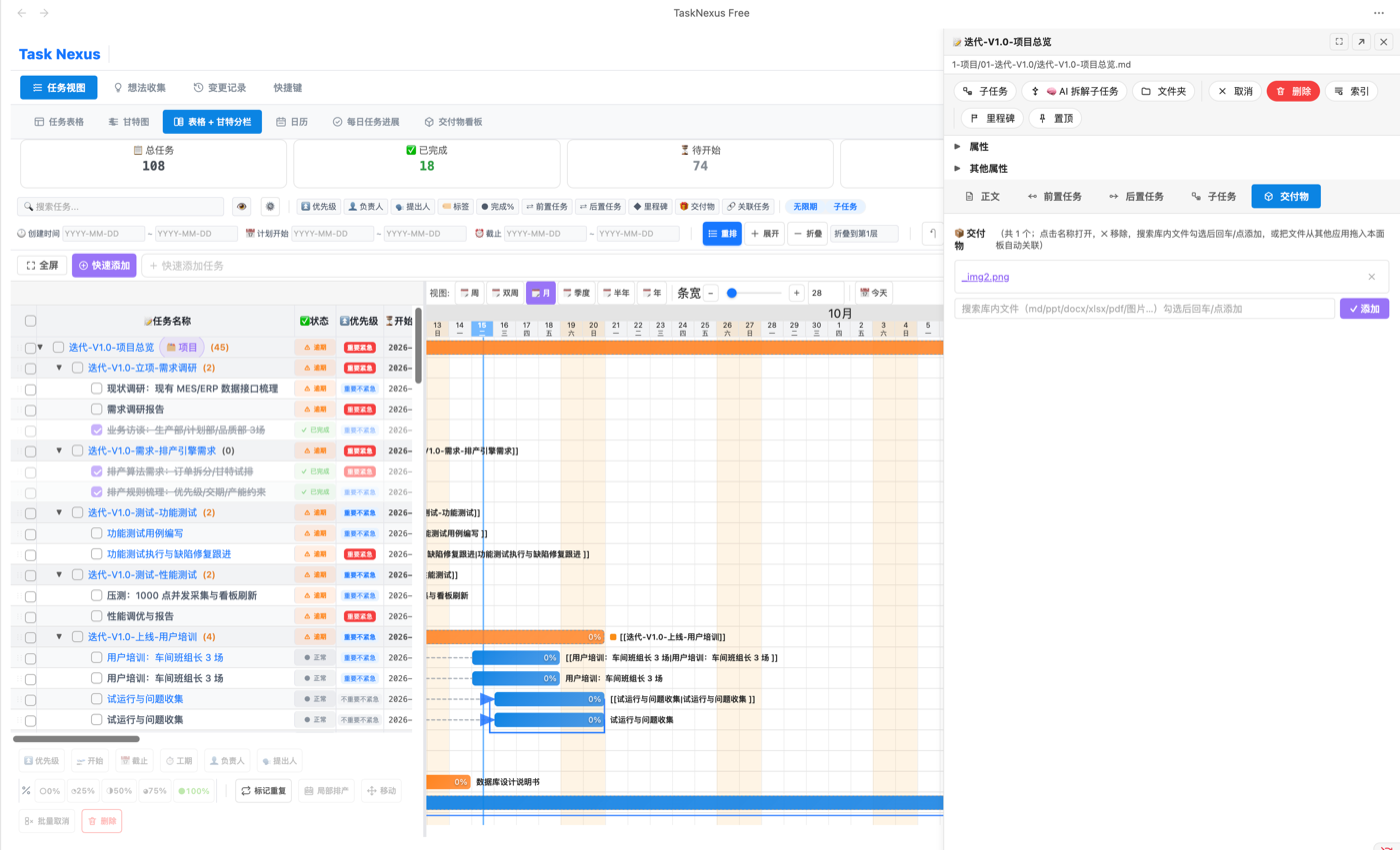
Open Obsidian and the plugin scans your task notes automatically, rendering every task as a colourful Gantt chart. This is the core view of Task Nexus and the base for all scheduling work. On top of the Free edition, Pro adds drag-and-drop rescheduling, batch scheduling and chained dependencies.
Core capabilities
- 6 time scales: week / 2 weeks / month / quarter / half-year / year, one click to switch
- Drag to reschedule: drag a task bar to change its start and due dates
- Automatic parent aggregation: parent bars stretch or shrink as child dates change
- Folder colours: colour-code by folder to tell projects apart at a glance
- Smart filtering: group by folder / note / title
What else you can do on the chart
- Double-click a task row to open the note editor panel on the right and edit properties without leaving the chart (see Note editor panel)
- Flag key dates as milestones, shown as diamonds on the chart (see Milestones)
- Select a batch of tasks for local scheduling or chained dependencies while every other date stays untouched
◆ Milestones Pro
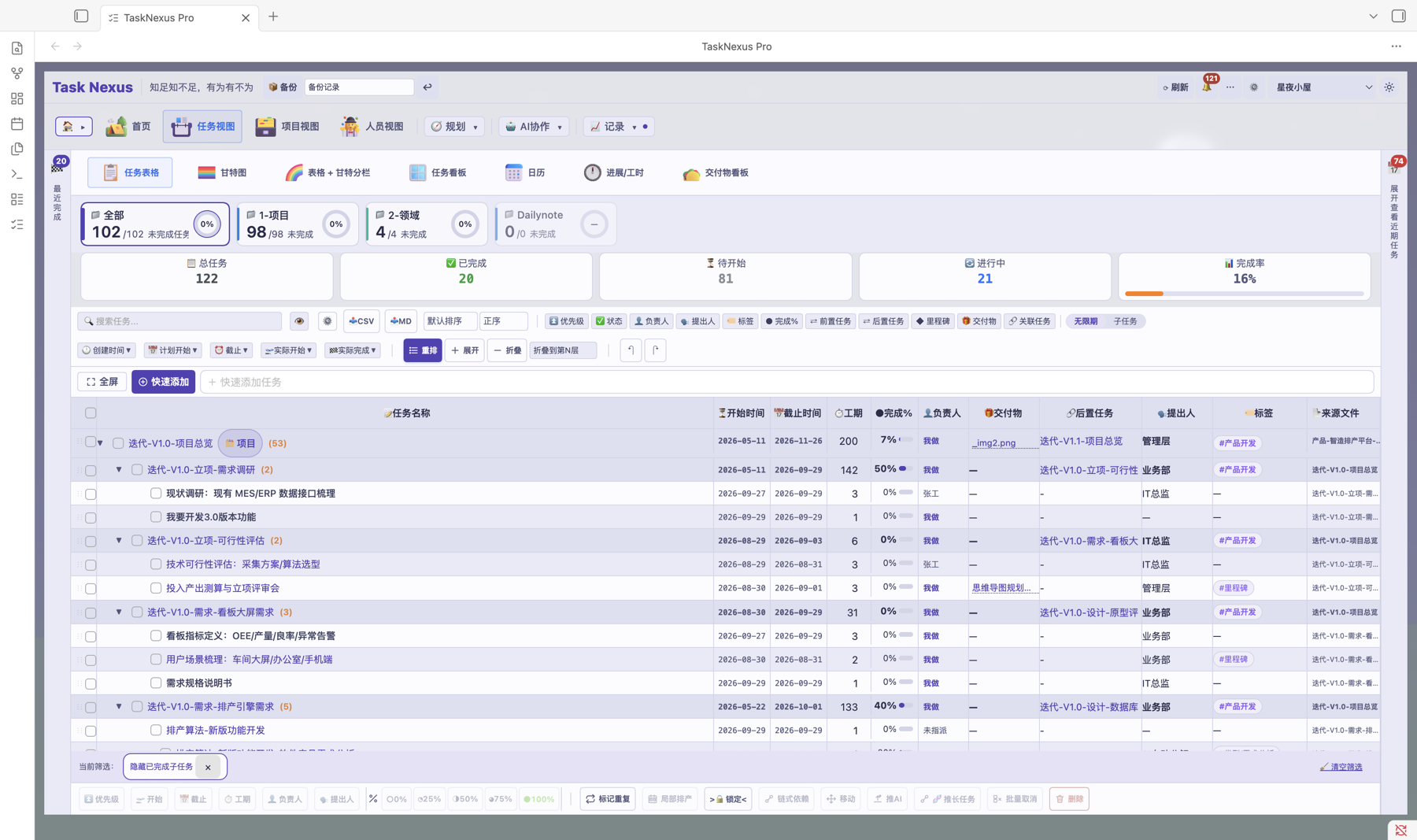
Milestones let you flag key checkpoints right in the task table. A milestone task shows as a diamond icon on the Gantt chart, clearly distinct from ordinary task bars.
How to mark a milestone
- Find the target task row in the task table
- Click the "Milestone" column (the ◆ icon) in that row
- The icon turns from hollow to filled, meaning the task is now a milestone
Spotting milestones on the chart
Milestone tasks appear on the timeline as diamonds instead of bars, so key dates jump out immediately:
- ◆ Open milestone: hollow diamond
- ◆ Completed milestone: filled diamond (the colour changes when the task is done)
Clearing a milestone
Click the filled icon in the milestone column again to remove the milestone flag.
Marking by tag
You can also flag milestones with a tag in the note frontmatter:
#milestone
Add that tag and the task automatically renders in milestone style.
Column configuration
The milestone column can be shown or hidden from the header right-click menu. Turn it off if you do not need it right now to save space.
📝 Note editor panel Pro
The note editor panel is the sidebar on the right of the Gantt chart. It lets you edit the metadata of the note behind a task without leaving the plugin view.
How to open it
- Double-click the target task row in the Gantt task list
- The note editor panel opens on the right
- The panel has several tabs, each managing a different set of task properties
Panel tabs
| Tab | What it does |
|---|---|
| 📋 Task info | Edit task name, priority, start / due dates and more |
| 🔗 Dependencies | Manage predecessor relationships |
| 📦 Deliverables | Quickly add and manage files attached to the task |
Adding deliverables fast
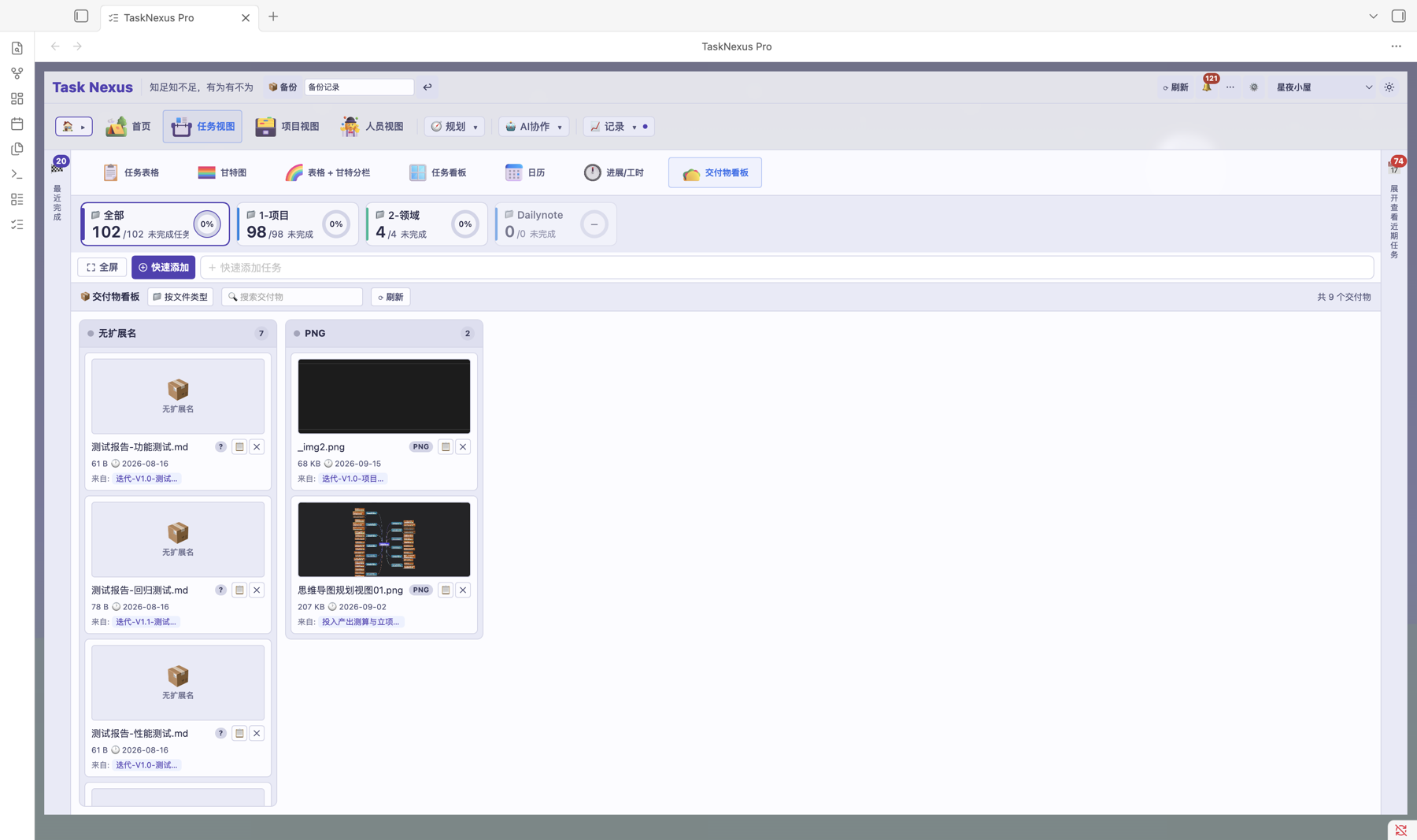
The Deliverables tab searches your vault and links files without any path copying:
- Click the "📦 Deliverables" tab
- Type a keyword in the search box
- Matching vault files are listed automatically (md / ppt / docx / xlsx / pdf / images and more)
- Tick the files to add (multi-select works)
- Click "✓ Add" or press Enter to link them all to the task
Managing linked deliverables
- Click a file name: open that file in Obsidian
- Click ✕: remove the deliverable from the task
Supported file formats
Deliverables can link the following formats (configurable in settings):
md, ppt, pptx, doc, docx, xls, xlsx, pdf, png, jpg, jpeg
[[file name]]) and stay in sync with the deliverable column in the Gantt table. Search only lists files with the allowed extensions, so you cannot link the wrong thing by accident.
🗂️ Project view Pro
Project view lifts the unit of management from a single task to a whole project. Each project is a note folder; open project view and total tasks, completion rate, overdue analysis and workload are all right there.
How projects are detected
The plugin recognises a project from the type: project field in a note's frontmatter. Add it to the project's README.md or index note:
| Field | Meaning | Example |
|---|---|---|
type | Must be project | type: project |
projectName | Project name | IT infrastructure upgrade |
status | Project status | In progress / On hold / Closed |
owner | Project owner | Alex Chen |
client | Client name | Acme Manufacturing |
budget | Project budget | 500k |
milestone | Key milestone | Go-live 2026-09-01 |
Project stats panel
Open project view and pick a project to see its numbers:
- Total tasks: every task in the project
- Completion rate: share of finished tasks, an instant progress read
- Not started: tasks that have not begun
- In progress: tasks being worked on
- Overdue: tasks past their due date
- Effort summary: planned vs actual hours (pairs with task timer)
Workload analysis
See how work is spread across the team. Each member shows:
- Total tasks
- Completed
- Overdue
- In progress
Managers can spot who is overloaded and who has spare capacity, then rebalance the work.
Column configuration
The project table columns are configurable. Right-click the table header and pick the columns you want: task name, owner, priority, start date, due date, progress, status, hours and more.
🔀 Project switcher Pro
The project switcher is the sidebar on the left of project view. It gathers every project in one place for fast switching, with collapse and overview built in.
Panel layout
Project view uses a two-column layout: project list on the left, content on the right:
- Left sidebar: project list plus an overview (task count, completion rate, overdue count)
- Right area: the stats panel, board and task list of the current project
Switching projects
- Open the Gantt chart and switch to the "🗂️ Project" view
- Click a project name in the list on the left
- The right area switches to that project's data and boards
Collapsing the panel
Click the collapse button («) at the top of the panel to hide the project list and give the content area the full width. Click it again, or click the "expand project switcher" tab, to bring it back.
The collapsed state is remembered, so the panel reopens exactly as you left it.
Project overview
The bottom of the sidebar summarises the current project:
- Total tasks
- Completion rate
- Overdue tasks
- Start date / end date / owner
📊 Project board Pro
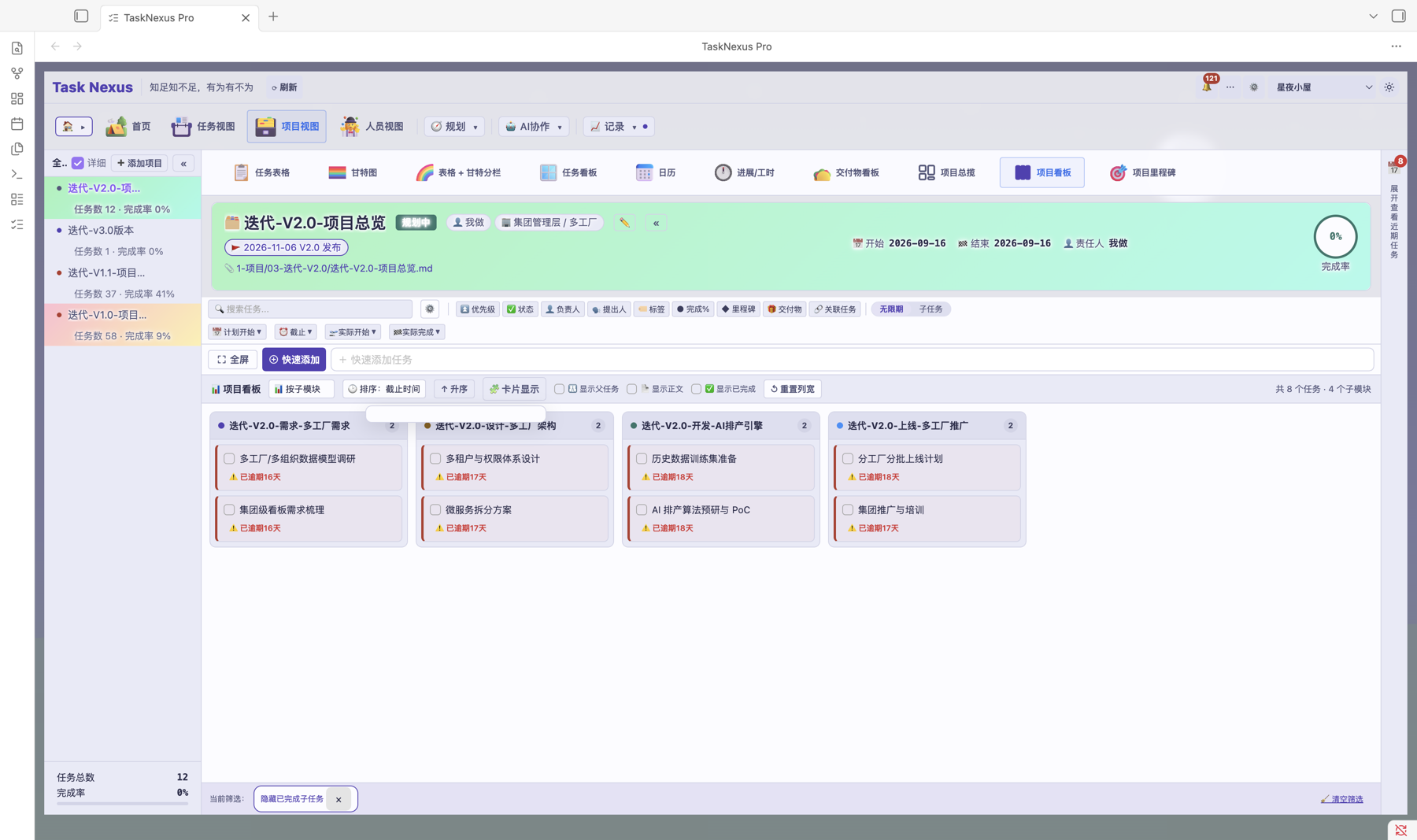
The project board is a sub-tab inside project view. It shows how work flows through the current project in board form — Trello-like, but tuned for project management.
How to open it
- Switch to project view and select a project
- In the sub-tab bar at the top of the right area, click "📋 Board"
- The project board shows every task in that project
Grouping options
The project board supports two grouping dimensions:
| Grouping | Description |
|---|---|
| By project | Default. Columns by task status: To do / In progress / Done |
| By creation time | Columns by the week or month a task was created |
Showing completed tasks
The project board hides completed and cancelled tasks by default (same behaviour as the task board). To see them, toggle "✅ Show completed" in the board toolbar.
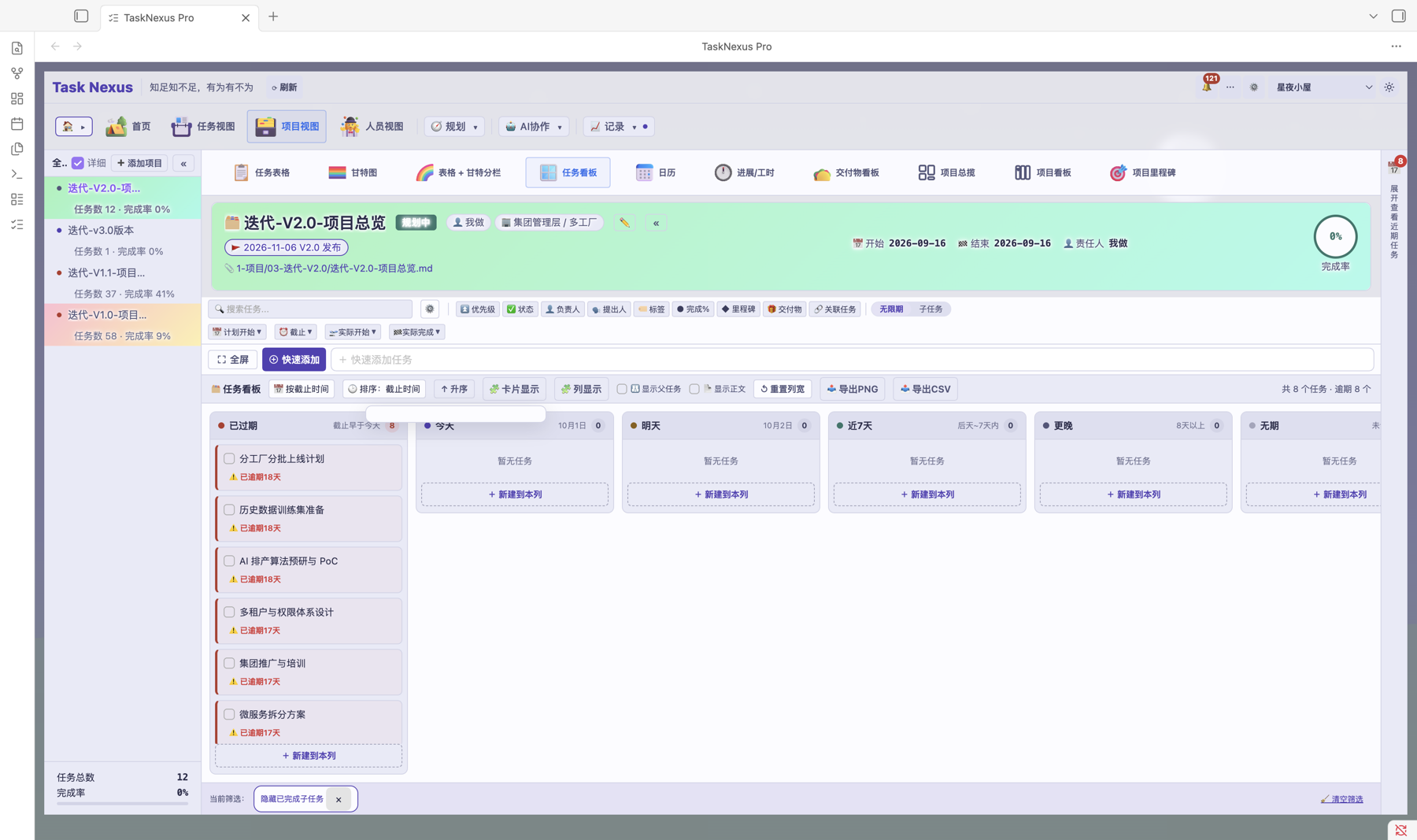
Showing parent tasks
The project board can show parent tasks (marked 📂). A parent's start and end come from its children, so its due date cannot be edited by hand. You can turn this option off in settings.
Sorting
Several sort orders are available and remembered per view — by priority, due date, task name and more.
🏁 Milestone sub-view Pro
The project view gains a dedicated milestone sub-view: every key date of a project in one list, grouped by month, with search plus status and owner filters — delivery dates, reviews and go-lives at a glance.
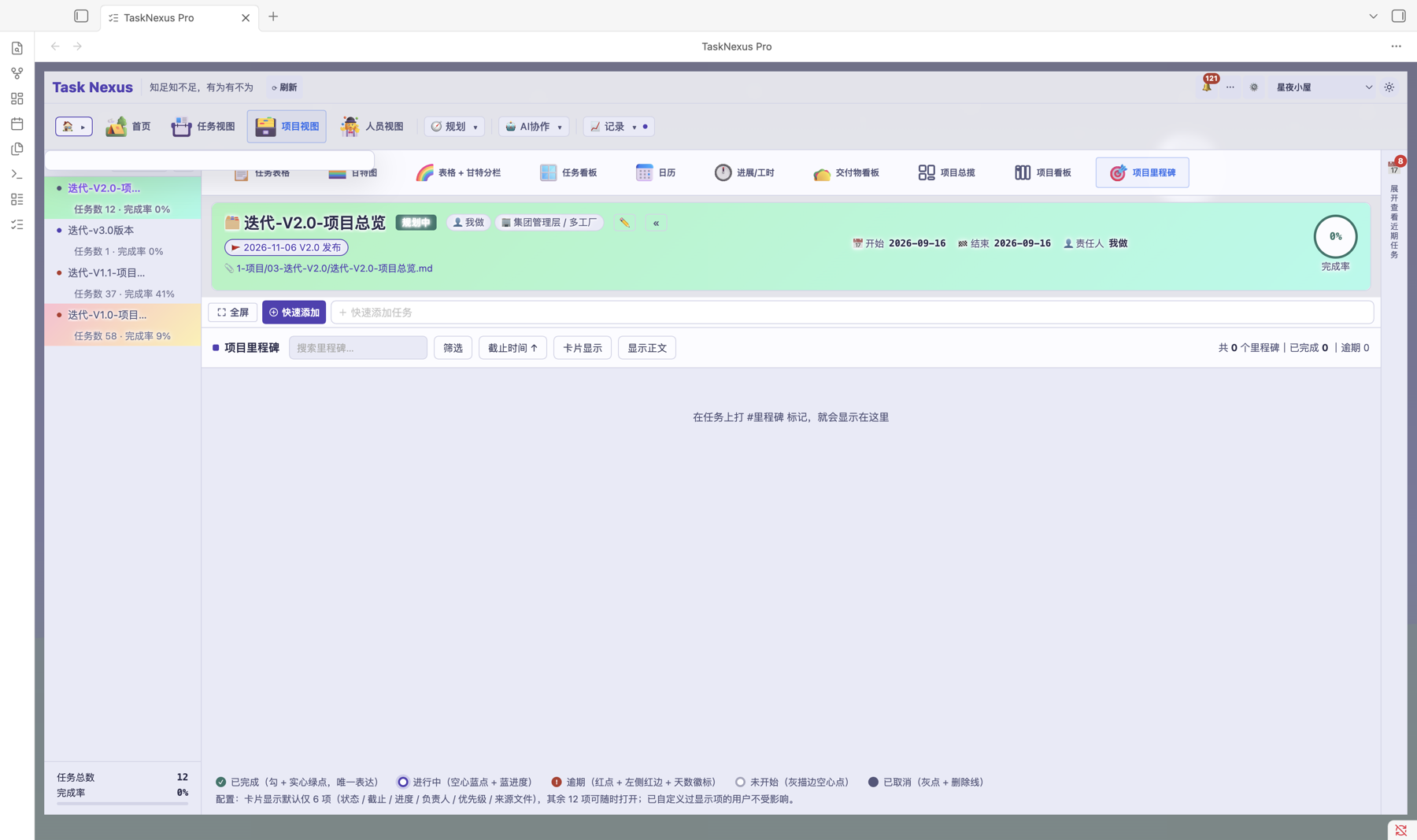
What it does
- Grouped by month: milestones are grouped by their due month; tasks without a due date get their own group
- Filters: search box plus status (not started / in progress / overdue / done / cancelled) and owner
- Sorting: by due date, start time or task name
- One state, one look: status and remaining time (N days left / due today / N days overdue / done) shown on the card
#milestone (or light up the ◆ Milestone column in the task table) and it shows up in this sub-view.
👥 People view Pro
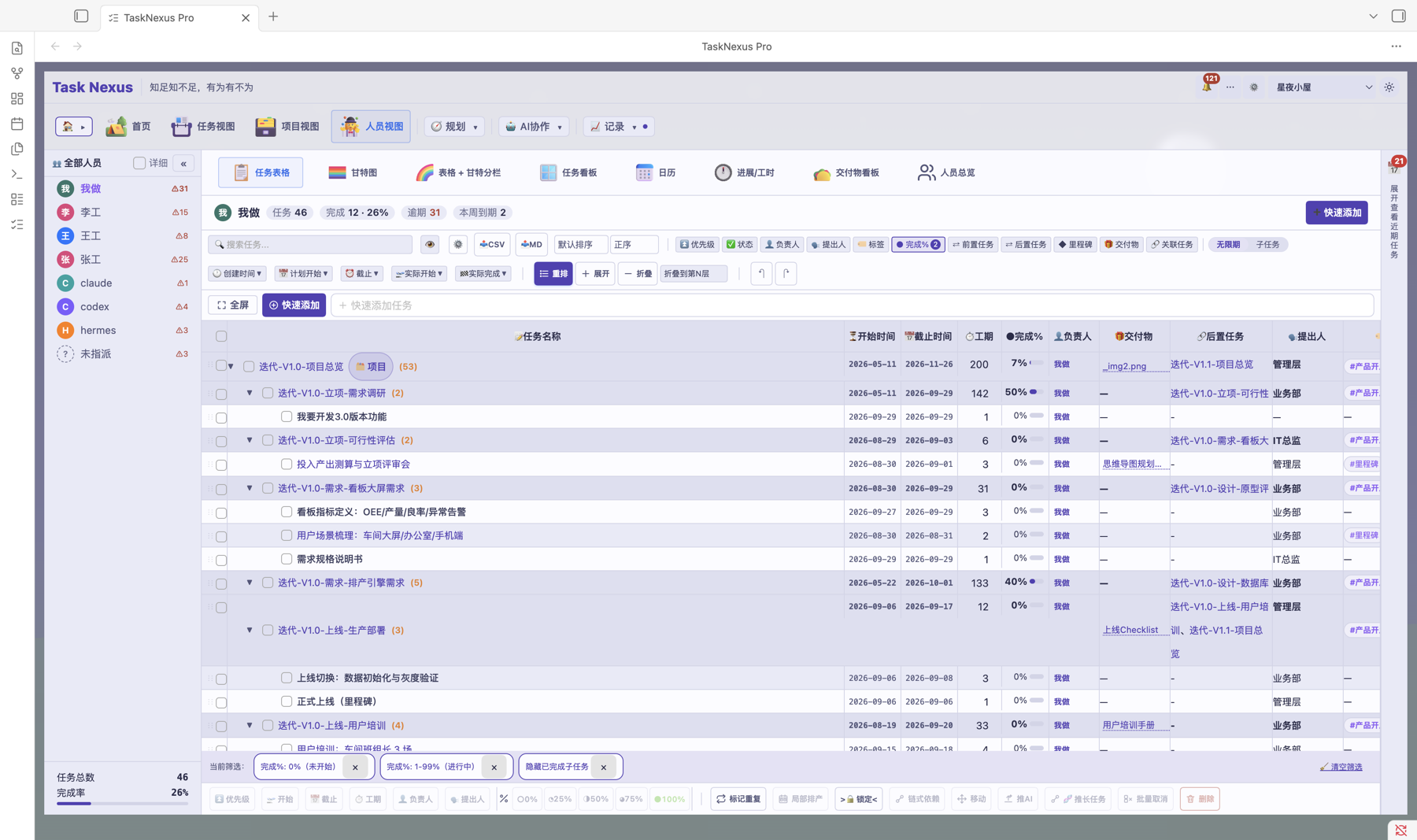
The people view is another dimension of the workbench: the task view looks at tasks, the project view looks at projects, and the people view looks at each member — who is working on what, how progress and load are distributed. Built for managers who need to assign work and balance capacity.
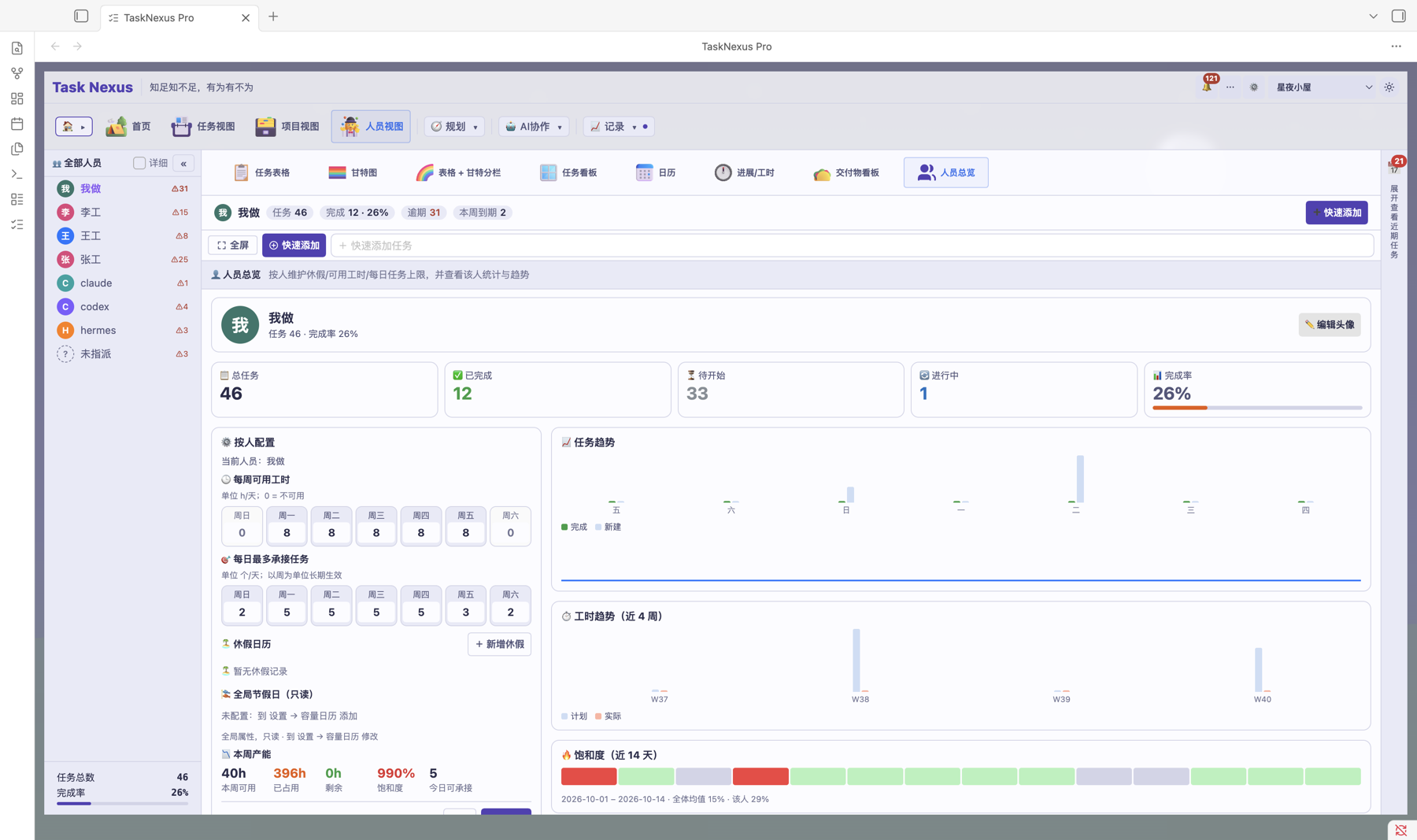
What's inside
- Member overview: task counts, progress and status distribution per person
- All the usual views: task table / gantt / split table+gantt / task board / calendar, same interactions as the task view
- Deliverables board: see output per person
- Progress / work hours: daily progress and logged hours per person
📅 Today panel Pro
The Today panel is the "due today" area on the right of the Gantt chart. It gathers the tasks that matter most today, so the moment you open Obsidian you know what to do.
Three kinds of tasks, collected automatically
| Category | Marker | Description |
|---|---|---|
| 📅 Due today | Green | Tasks due today |
| 📅 Overdue | Red | Tasks past their due date and not finished |
| 🔄 In progress | Blue | Tasks in progress but not due today |
Filtering: my tasks only
When several people share a vault, focus on what is assigned to you:
- My tasks: only tasks tagged
#role/me - Raised by me: only tasks tagged
#src/me
Board mode
Switch the today list into a board, with columns by status (To do / In progress / Done) — as visual as Trello.
Use the board / list toggle at the top of the panel. Cards show the task name and a summary of the note body.
Parent tasks
Child tasks in the Today panel show their parent (marked 📂) so you can see where they belong. Parents are collapsible rows with children indented beneath them.
Resizing the panel
The Today panel width is adjustable. Hover the divider between the Gantt chart and the panel, then drag to widen or narrow it.
Postponing overdue tasks
Right-click an overdue task in the Today panel and choose "Postpone" to push its due date out.
💡 Idea inbox Free
Ideas vanish fast. The idea inbox gives you a quick-capture panel to jot thoughts down the moment they arrive, then turn any of them into an actionable task with one click, so no good idea is lost.
How to open it
Click 💡 Idea inbox in the plugin's top navigation. Type a line, press Enter, and it lands in your "Idea inbox" folder.
From idea to task
- Capture thoughts and sparks in the panel; pressing Enter files them into the idea inbox
- Convert an idea to a task in one click from the idea board, making it schedulable and trackable
- The source is kept after conversion, so you can trace which idea a task came from
Typical uses
| Scenario | How it works |
|---|---|
| Capture anywhere | Note ideas during meetings, on the commute or while reading, and tidy them later |
| Turn into tasks | Convert a captured idea into a task and move it into your scheduling flow |
⚡ Quick add Free
Quick add creates a task in one step, with no Markdown syntax to write by hand — and it goes straight into the scheduling flow.
How to open it
- Shortcut:
Ctrl + Shift + T(Cmd + Shift + Ton macOS) - Toolbar button: click "⚡ Quick add" in the toolbar at the top of the Gantt chart
- Home quick entry: the "⚡ Quick entry" card on the home dashboard accepts a
task name #tag @ownerline
Create panel fields
| Field | Description | Default |
|---|---|---|
| Task name | Required — the task title | (empty) |
| Target file | Which note the task is written to | Today's daily note |
| Target heading | Which heading in the note to write under | End of file |
| Owner | Who executes the task | Default owner from settings |
| Priority | ⏫ High / 🔺 Medium / 🔽 Low / ⏬ Lowest | Default priority from settings |
| Due date | When the task is due | Today |
Date shortcuts
The due date has five one-click buttons: Today / Tomorrow / Weekend / Next Monday / End of month.
🔄 Dida365 sync Pro
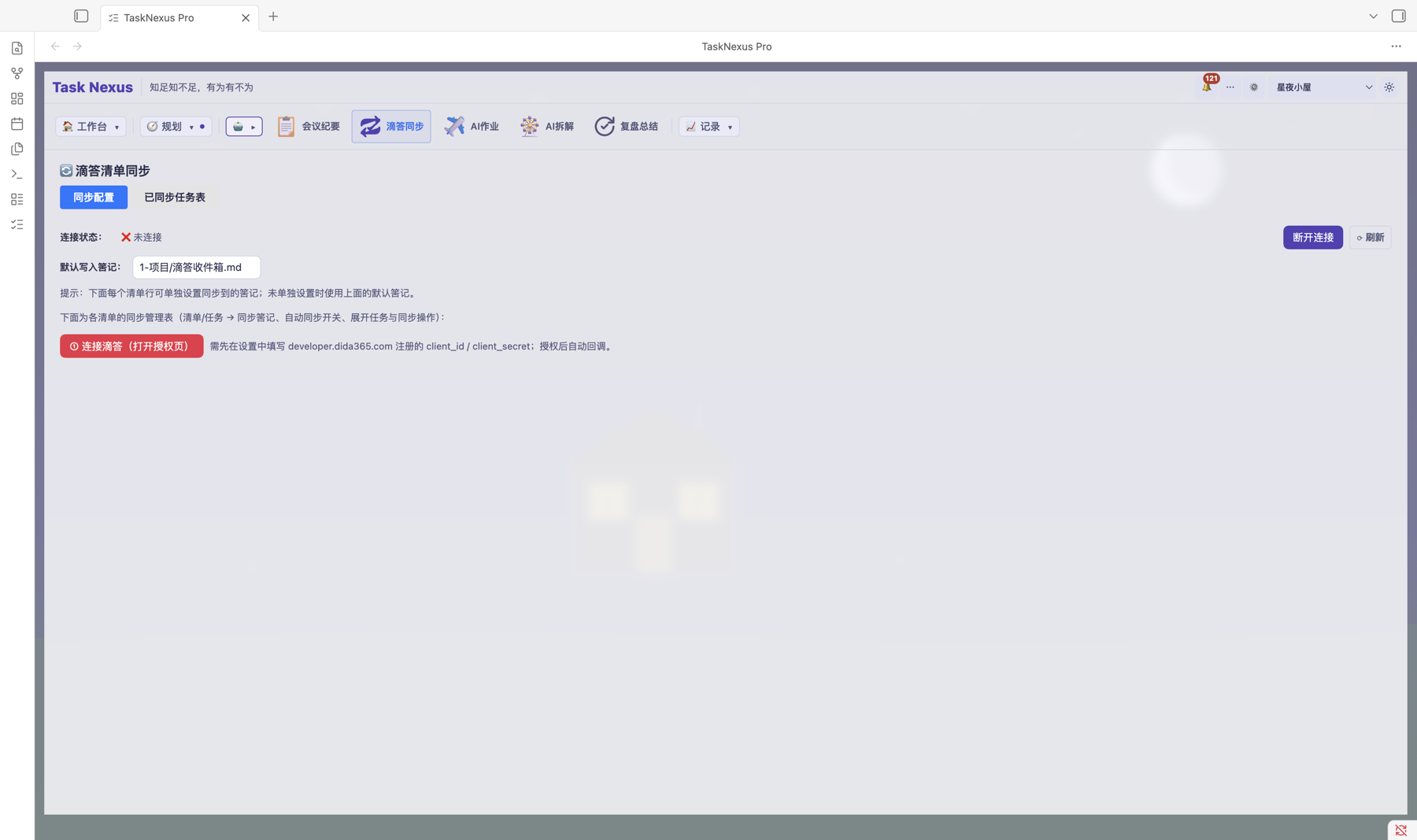
Two-way sync with Dida365 (TickTick) keeps tasks in step between Obsidian and your phone. Edit in Obsidian and the mobile app updates; complete on your phone and Obsidian writes it back — both ends always match.
Connecting with OAuth
Connect your Dida365 account through OAuth 2.0, so no password is ever exposed.
- In settings, click "🔗 Connect Dida365"
- Your browser opens the Dida365 authorisation page
- Sign in and authorise Task Nexus to access task data
- You are returned to Obsidian automatically and the connection is live
Two-way task sync
Task creation, updates and completion all sync in both directions.
| Direction | Action | Effect |
|---|---|---|
| Obsidian → Dida365 | Create or edit a task | Synced to Dida365 automatically |
| Dida365 → Obsidian | Complete a task | Writes the - [x] state back in Obsidian |
Each task row embeds a Dida365 link, 🔗Dida, which opens the web app.
Field mapping
| Obsidian field | Dida365 field |
|---|---|
| Task name | Title |
| Due date 📅 | Due Date |
| Priority 🔺/🔽 | Priority |
| Completion [x] | Status |
| Tags #tag | Tags |
List path sync
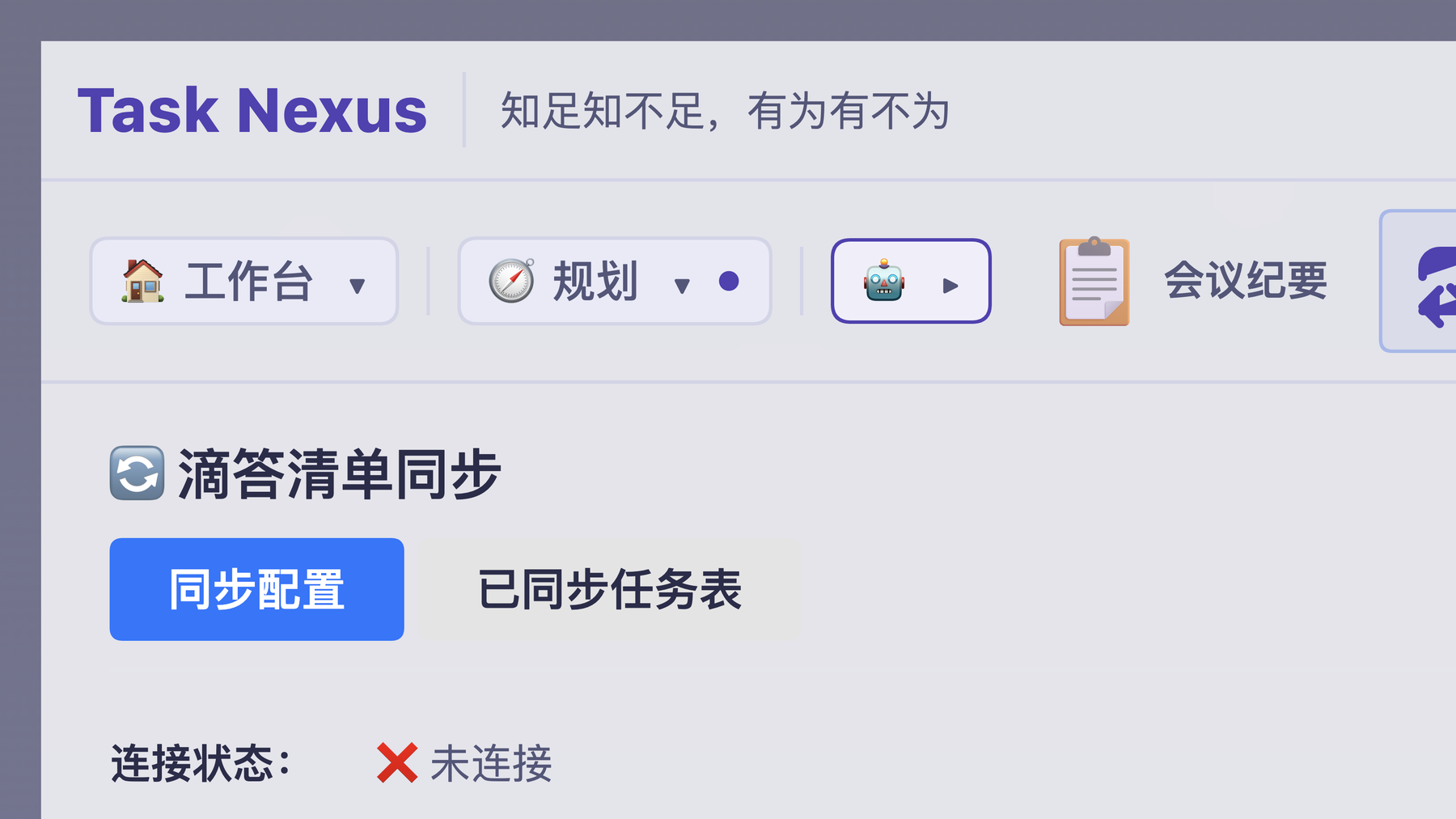
Sync follows Dida365 list paths, mapping the list structure onto Obsidian folder paths. When syncing to a given note, tasks are written into the matching target file automatically.
Description sync
When tasks come in from Dida365, the description is synced along with the name and properties, so your Obsidian task notes hold the full picture.
Filtering archived lists
Choose whether archived lists are shown, keeping finished projects out of your current task views.
Typical uses
| Scenario | How it works |
|---|---|
| Working on the move | Manage tasks in Dida365 on your phone; back at your desk they are already in Obsidian |
| Team collaboration | Teammates update progress in Dida365 while the project lead sees the whole picture in Obsidian |
| Task capture | Note ideas quickly on your phone; they sync into the right Obsidian project note |
| Status sync | Complete a task on either side and the other updates itself |
⏱️ Task timer Pro
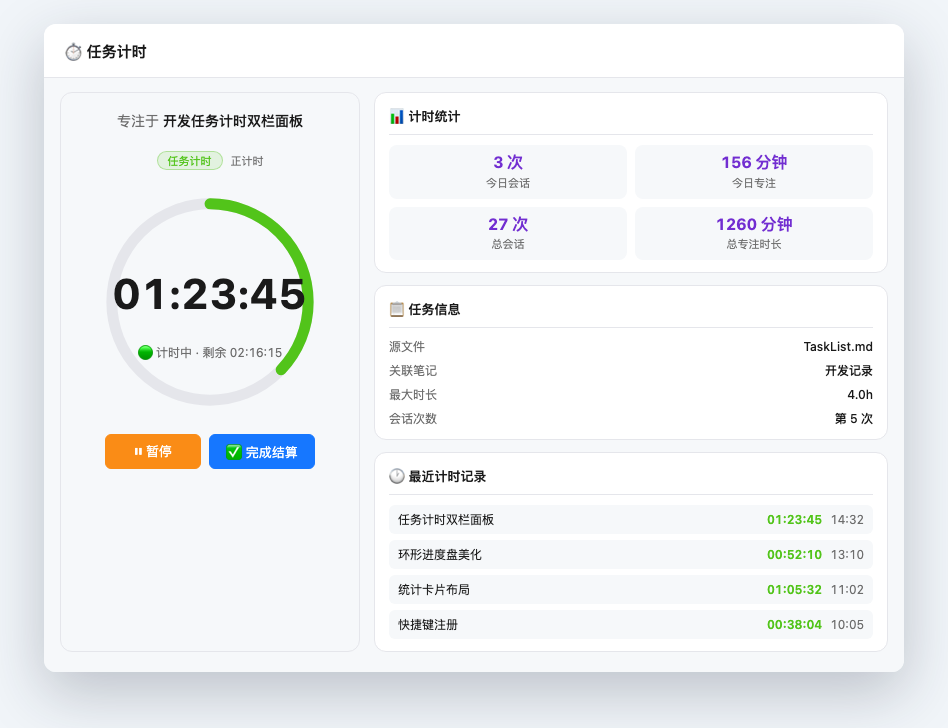
The task timer shows exactly how long each task took. The redesigned two-column timer panel puts a focus timer on the left and a task overview on the right: start with one click, stop when you are done, and actual hours are recorded for you — no timesheets to fill in.
Two-column timer panel
Click the timer button and the new two-column panel opens:
| Area | Content | Purpose |
|---|---|---|
| Left — focus | SVG ring progress plus large time display | Live progress and elapsed time |
| Right — overview | Task info plus timer history | Task details and past timer sessions |
Panel features
- Ring progress: an SVG circle that shows progress at a glance
- Resizable: drag to resize, down to 700×380 pixels
- Runs in the background: closing the panel does not stop the timer
- Mode label: shows whether the timer is running or paused
Starting a timer
- Find the target task row in the Gantt task list
- Click the ⏱ button on that row
- The two-column panel opens and timing starts
- When you finish, click the stop button in the panel
- The result is written to the task's
actualHoursfield
Timer status
While a timer runs, the Obsidian status bar shows it live:
- The name of the task being timed
- Elapsed time (HH:MM:SS)
For example: ⏱ Timing: IT infrastructure upgrade — requirements research | 01:23:45
Opening the note when timing starts
If the note behind the task is not open when you start the timer, the plugin opens it for you so you can begin immediately. You can turn this off in settings.
Automatic settlement on completion
When a task is marked done (- [x]) and it has timer records, the actual hours are settled and written to actualHours automatically.
Maximum session length
To stop runaway sessions (say you forgot to stop), the default maximum is 4 hours. The timer stops by itself past that limit — configurable in settings.
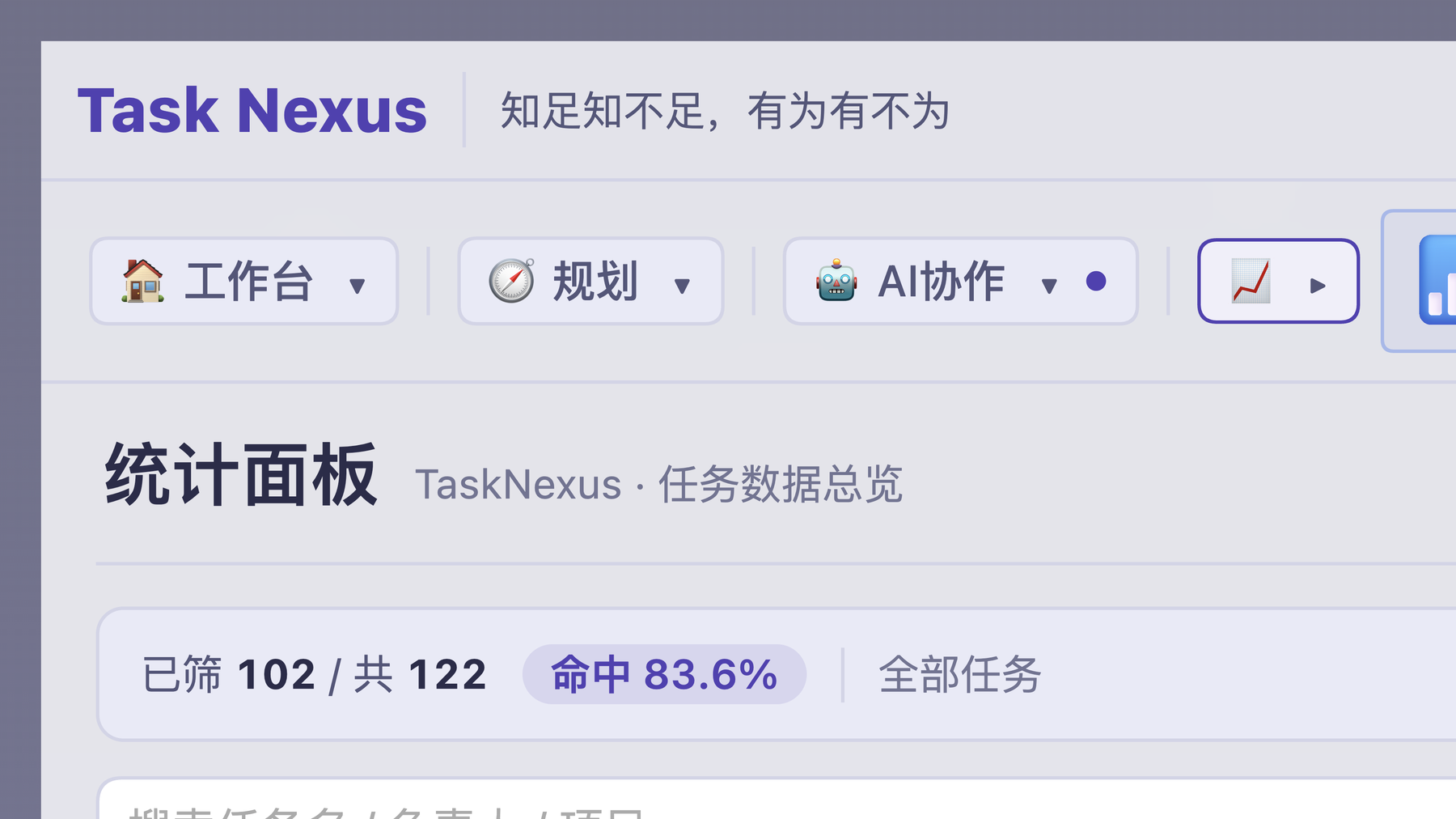
📊 Stats dashboard Pro
The stats dashboard is your global data board, built for decisions backed by numbers. Open it and the whole vault's task data is in front of you.
How to open it
Click "📊 Stats" in the Gantt toolbar.
Overview
The top of the panel summarises the vault:
- Total tasks: every task in the vault
- Completed: tasks finished
- Overdue: tasks past their due date
- Completion rate: completed as a share of all tasks
Overdue analysis
See how overdue work is distributed:
- Total overdue
- Overdue and not started
- Overdue and in progress
It surfaces schedule risk early.
Workload
Per-member cards showing how work is allocated:
- Total tasks
- Completed
- Overdue
Instantly see who carries the most tasks and who is behind, then rebalance.
Weekly trend
A line chart of tasks completed and started per week, tracking your team's rhythm. The horizontal axis is the week, the vertical axis is task count.
Great for weekly meetings and progress updates.
Monthly trend
A bar chart of tasks completed and started per month — ideal for monthly reviews.
Priority distribution
The share of tasks at each priority (⏫ High / 🔺 Medium / 🔽 Low / ⏬ Lowest), showing how urgent the current workload is.
Project distribution
Per-project cards with task and completion counts, so you can compare progress and catch projects that are slipping.
📝 Change history Pro
Change history tracks every task operation automatically, so each adjustment leaves a trail — and any earlier state can be restored with one-click rollback.
What gets recorded
| Type | Description | Icon |
|---|---|---|
| Date change | Start date / due date adjusted | 📅 |
| Status change | To do → In progress → Done | 🔄 |
| Task created | A new task | ➕ |
| Task deleted | A task removed | ➖ |
| Moved across files | A task moved from one note to another | 📁 |
One-click rollback
- Find the target task's history entry in the change history panel
- Click "↩ Roll back" on the right of that entry
- Confirm and the task returns to that state, while a new rollback entry is added
🔔 Notifications Pro
Nothing important slips through: the plugin raises native reminders inside Obsidian, with no external service involved.
What it does
- Detects overdue tasks automatically and raises an in-app reminder
- Alerts on newly assigned tasks so you never miss a hand-off
- Native to Obsidian: reminders pop up in place, no app switching
- Works with the Today panel: overdue tasks are highlighted there too, echoing the reminder
📋 Task board Pro
The task board is a Trello-style drag-and-drop view with columns by status, making the flow of work obvious.
How to open it
Click "📋 Board" in the Gantt toolbar.
The columns
Three columns by task status:
| Column | Contains | Description |
|---|---|---|
| 📥 To do | Tasks not started | Newly created or not yet begun |
| 🔄 In progress | Tasks under way | Started but not finished |
| ✅ Done | Finished tasks | Marked - [x] |
Dragging cards
Drag a card into another column to change its status:
- Find the target card in "To do"
- Hold the left mouse button and drag it to "In progress"
- Release and the status updates
The change is written back to the Markdown task line in your note.
Filtering and grouping
- By owner: only one person's tasks
- By priority: only high-priority tasks
- By project: only one project's tasks
Card contents
Each card shows the task name, owner tag, priority icon and due date. Overdue cards are highlighted with a red border.
📦 Deliverables Pro
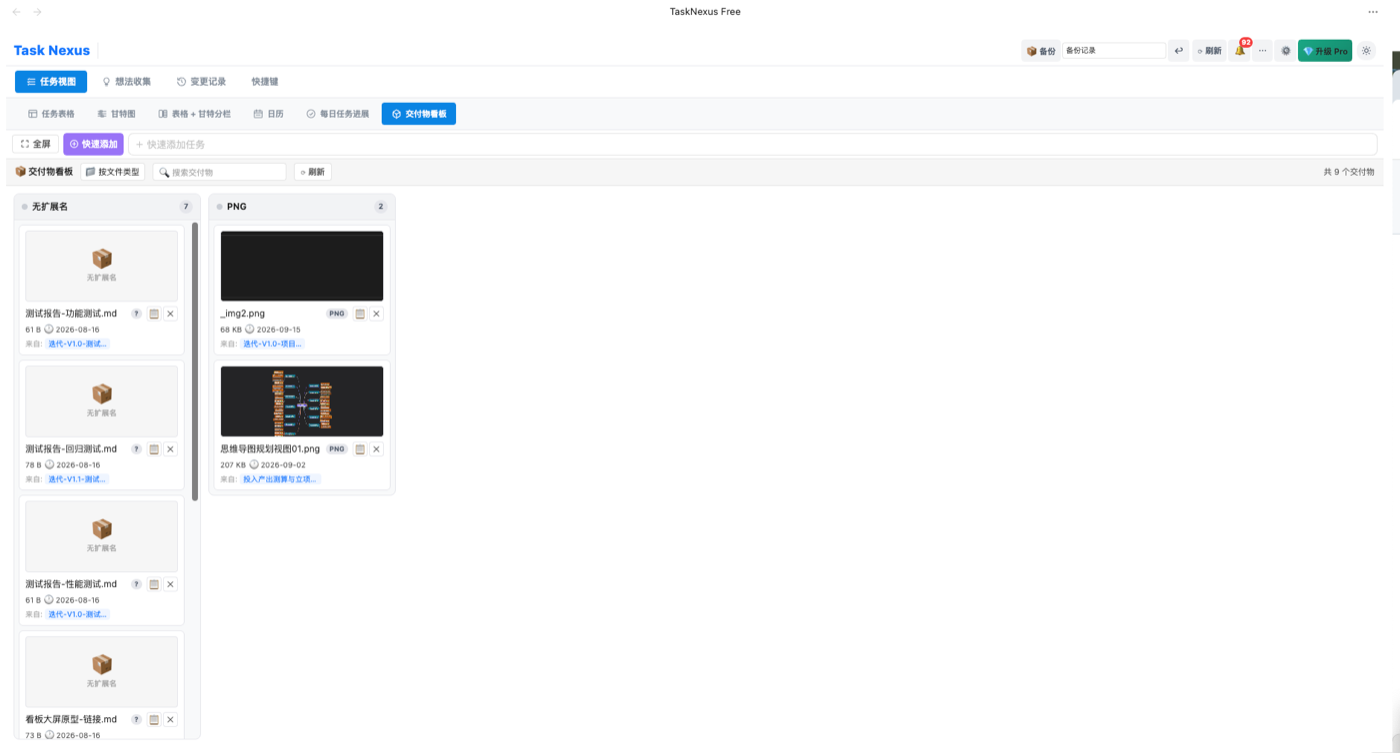
Keep every task output in one place: proposals, reports and spreadsheets attached to tasks are gathered on a single board, with drag-and-drop upload from other apps, and each file links back to its task automatically.
Three ways in
| Entry point | Description |
|---|---|
| Deliverables board | Every task's deliverables grouped by task, for a quick view of all output |
| Task detail · Deliverables tab | Manage linked files within a single task |
| Note editor panel · Deliverables tab | Search vault files from the Gantt chart (md / ppt / docx / xlsx / pdf / images) and tick several at once — see Note editor panel |
Drag-and-drop upload
- Drag files straight from Finder / File Explorer or any other app onto the deliverables board
- The file is linked to the right task, with no path copying
- Click a file name to open it in Obsidian; click ✕ to unlink it
🤖 AI jobs Pro
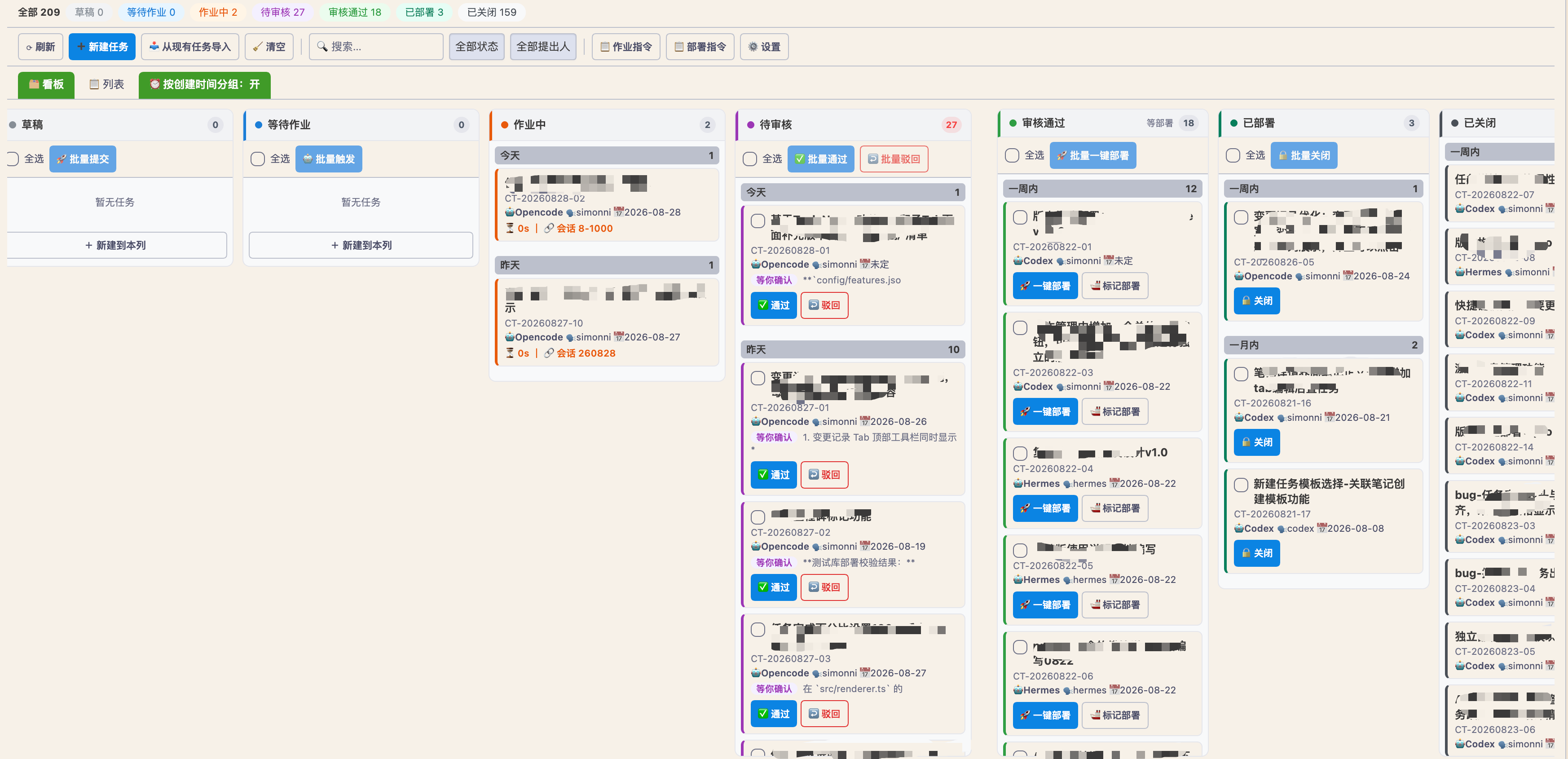
AI jobs is a task board built for AI agents. It turns task notes into an interface for human–machine collaboration: agents pick up, execute and deliver work while you review the result — an automated delivery pipeline that doubles development throughput.
Board structure
Each card is a task note, moving through statuses that show progress:
- Queued → Running → In review → Deployed → Closed
- If review fails, reject the task and it returns to the queue
- Delivery and deployment are visible end to end, with an owner and a timestamp at every step
Core mechanics
| Mechanism | Description |
|---|---|
| The note is the interface | Agents read and write the task note's frontmatter and body directly — the note is the single source of truth |
| Status flow | The whole pipeline moves automatically, with a timeline audit trail for every step |
| Optimistic locking | A version field prevents two agents from clobbering the same note |
| One-click deploy | Once approved, build, copy and verify the deployment to the target vault in one action |
Typical uses
| Scenario | How it works |
|---|---|
| AI-assisted development | Assign a development task to an agent and it executes and delivers |
| Automated deployment | After approval, deploy to staging or production in one click |
| Multi-agent work | Several agents run different tasks in parallel, with optimistic locking avoiding conflicts |
🧩 AI task decomposition Pro
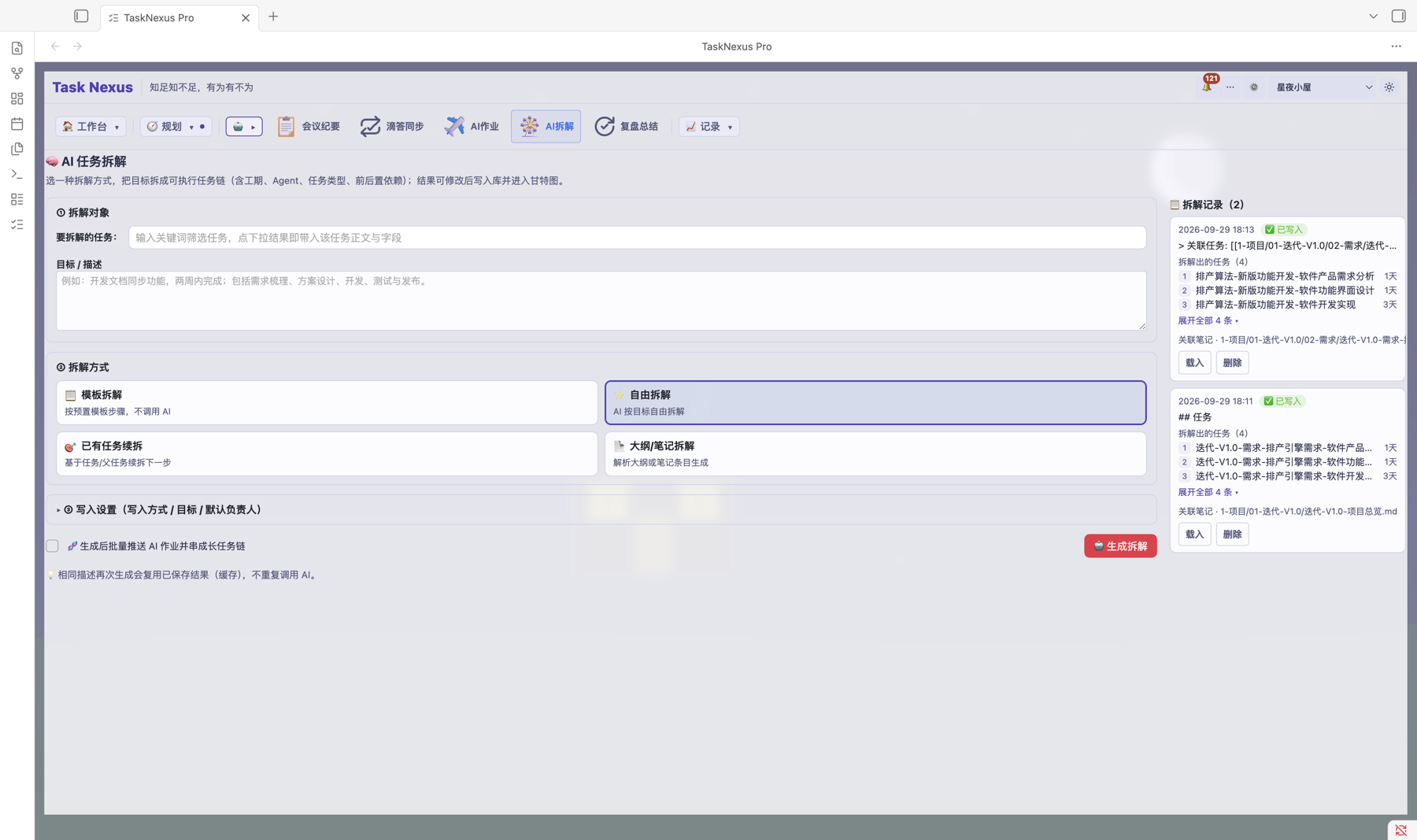
Hand a piece of work description to AI and get back an executable list of subtasks: AI follows a decomposition template, generates the subtasks, and writes them into your task notes only after you have previewed and confirmed — no silent writes to your vault.
Core capabilities
- Template-driven: built-in templates, configurable in settings
- Preview before write-in: review the generated subtasks first, then write them in
- Long task chains: decompose subtasks level by level
🗒️ AI meeting minutes Pro
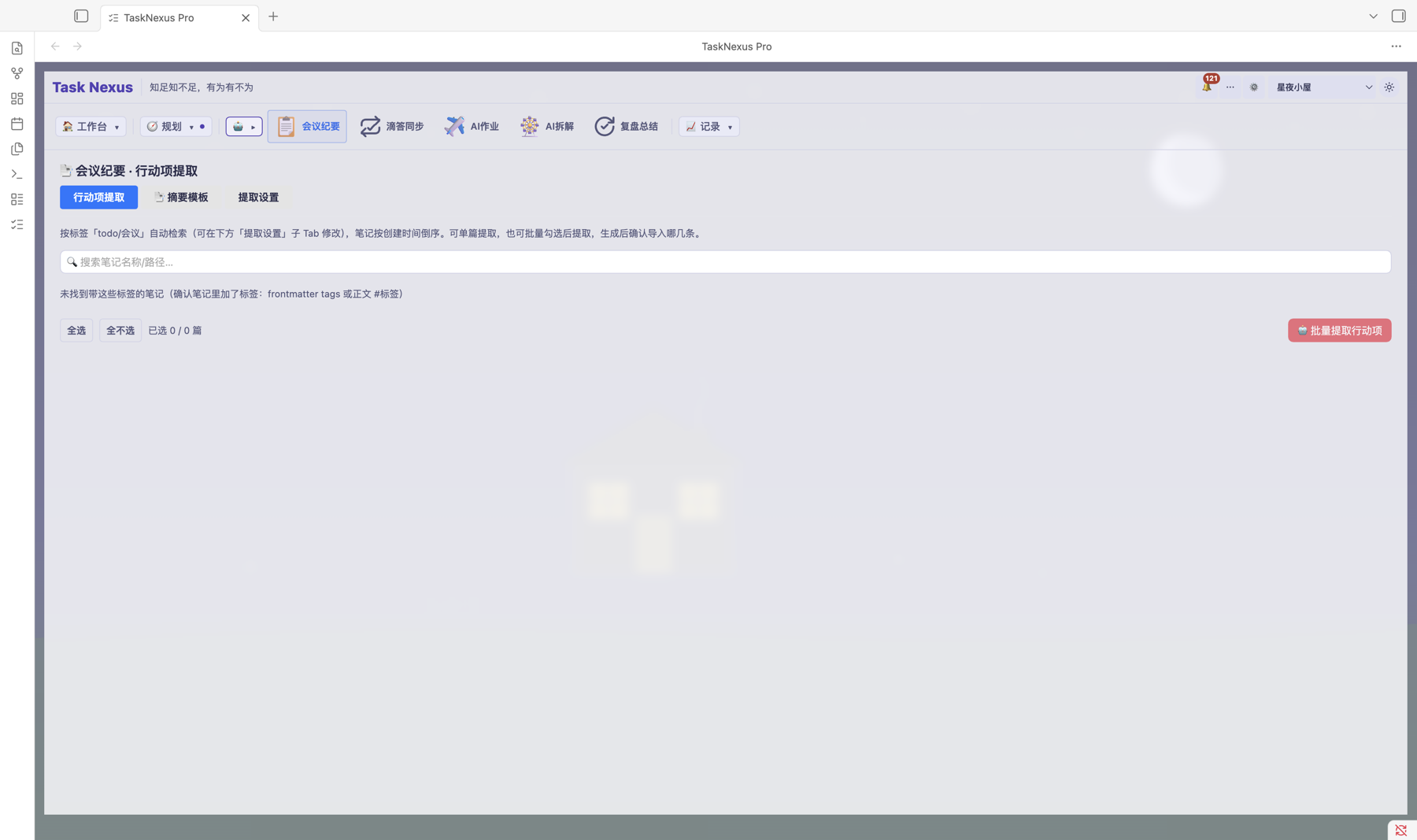
From the "🤖 AI collaboration" menu in the sidebar, hand meeting notes to AI and get a structured summary back — key points, decisions and action items. The result is saved as a note in your vault, easy to search and link to tasks.
How to use
- Sidebar "🤖 AI collaboration" → Meeting minutes
- Enter the meeting notes, AI generates the structured summary
- The summary is saved as a note you can link to tasks or planning
🗒️ AI review summary Pro
Also in the "🤖 AI collaboration" menu: let AI summarise recent tasks and plans into a retrospective, linked with the home dashboard's daily plan and daily review — a plan → execute → review loop.
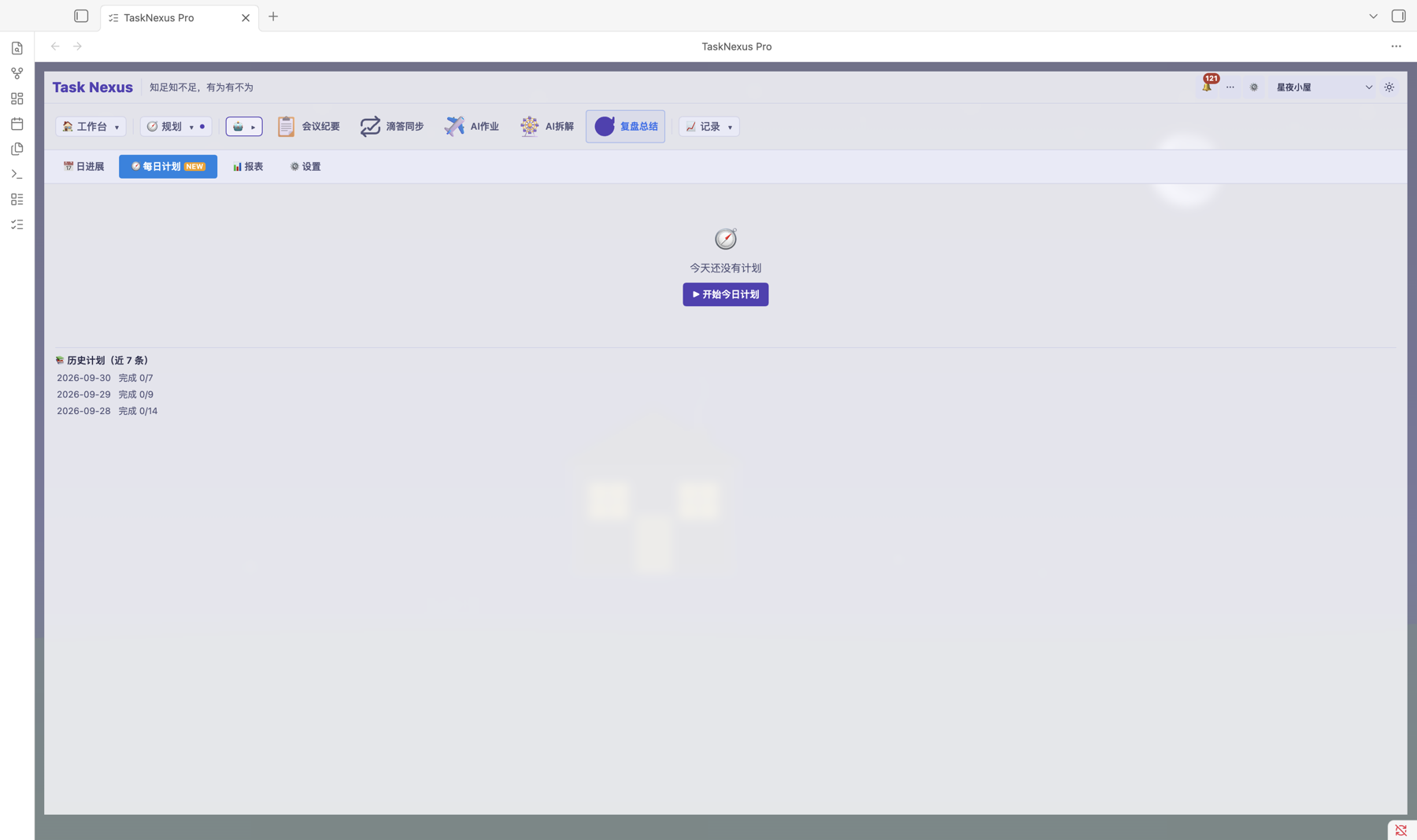
How to use
- Sidebar "🤖 AI collaboration" → Review summary
- AI collects what got done and writes the retrospective
- The result is stored as a note for regular review
🗺️ Planning view Pro
Planning view browses your task structure as a mind map, laying out task → subtask → next level so you can see how a project breaks into branches and what sits under each one — plan from the top, then execute level by level.
How to open it
Click 🗺️ Planning view in the plugin's top navigation to start from the current project or the selected task. Tasks are shown as a node tree of parent–child relationships.
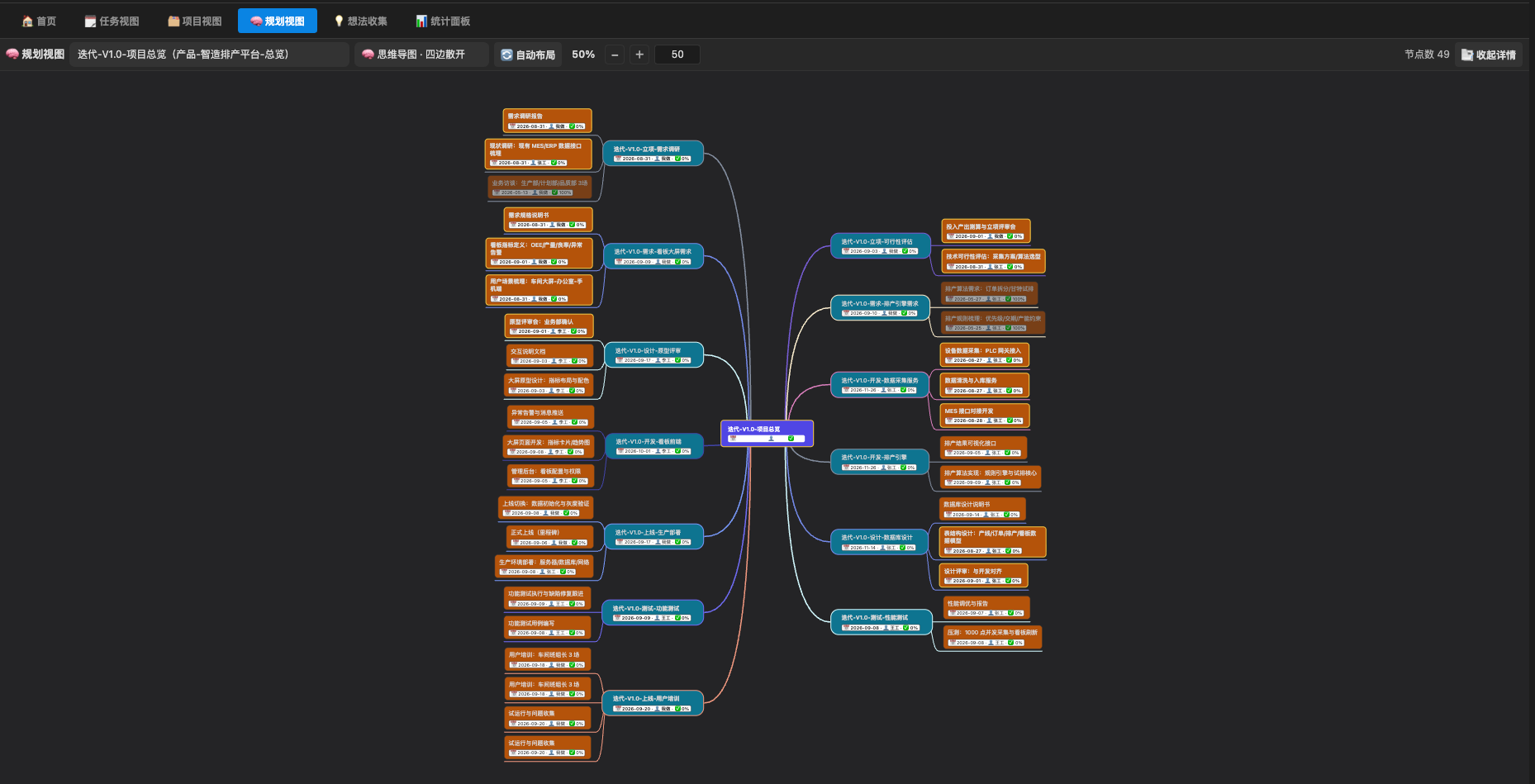
Tree hierarchy
Subtasks are collapsed level by level by default: a parent node folds its children away, and clicking a node expands or collapses that level so you can inspect any branch in detail.
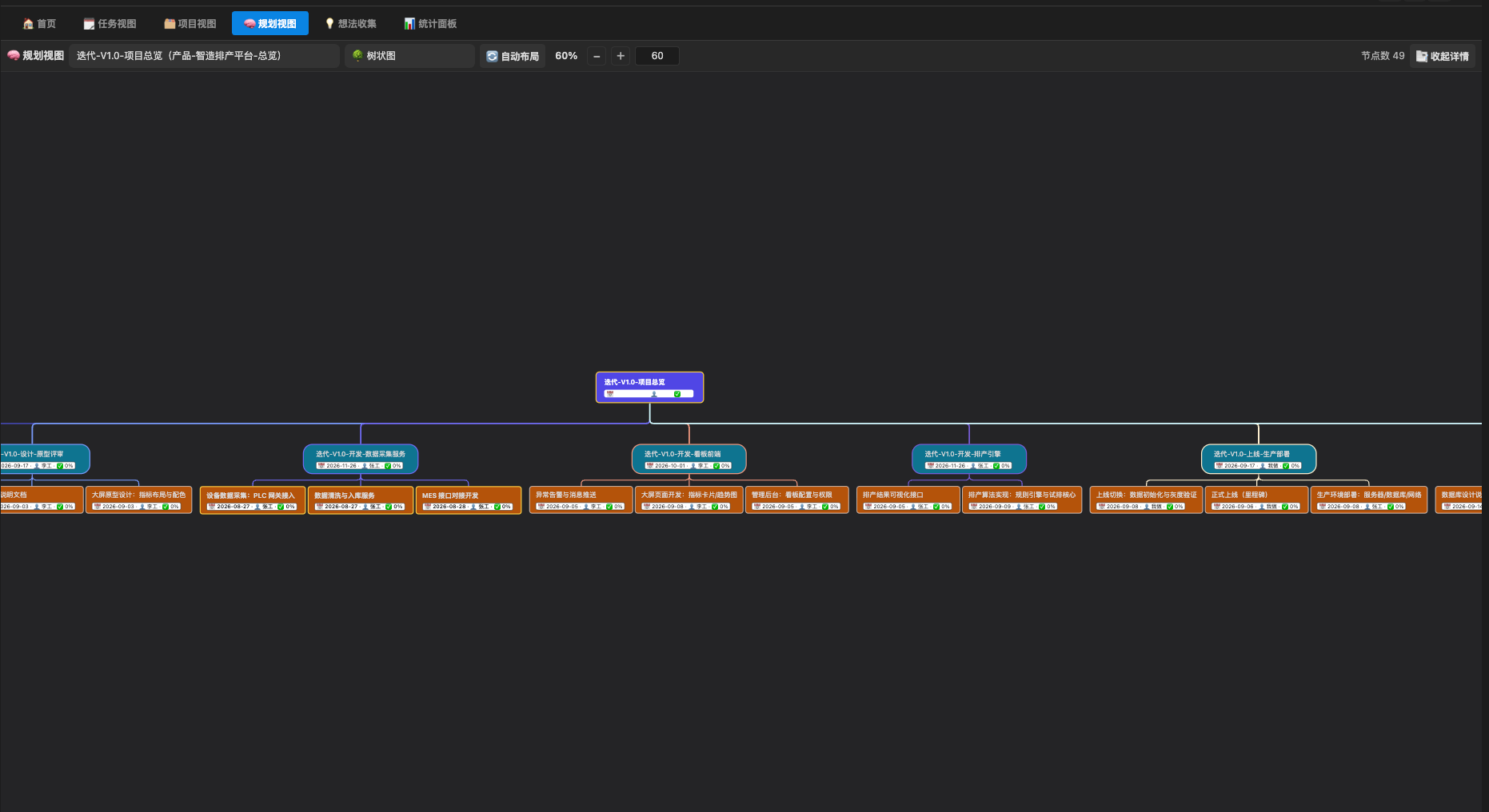
Linked task details
- Click a task node and its details open in a collapsible panel on the right — view and edit without leaving planning view
- Jump straight from planning view to the note a task lives in
- Node ordering is stable, so the tree looks the same every time you open it
Typical uses
| Scenario | How it works |
|---|---|
| Breaking down a project | Expand parent tasks level by level to check the breakdown is complete |
| Untangling dependencies | Read the hierarchy as a tree to work out the order of execution |
| Progress at a glance | Fit a whole project on one screen and spot blockers fast |
🎯 Goals (OKR) Pro
The 🎯 Goals tab is a first-level tab that closes the loop on objective (O) — key result (KR) — cycle review inside the plugin, so goals no longer live in scattered documents and progress and risk are visible at a glance.
Objectives and key results
- Objective (O): name, cycle, owner and notes — create one and pick or maintain the cycle inline
- Key result (KR): numeric progress (current / target) or percentage progress, rolled up into the objective
- Cycles: maintained as year → quarter → month; cycles already used by goals are picked up automatically
- Local storage: goals are saved as Markdown notes in your vault, with no cloud service involved
Cycle review and home cards
- Review completion and drift cycle by cycle, with progress shown next to the expected time ratio
- Add 🎯 Goal overview, ⚠️ At-risk KR and 🔁 Cycle review cards to the home dashboard so they are there the moment Obsidian opens
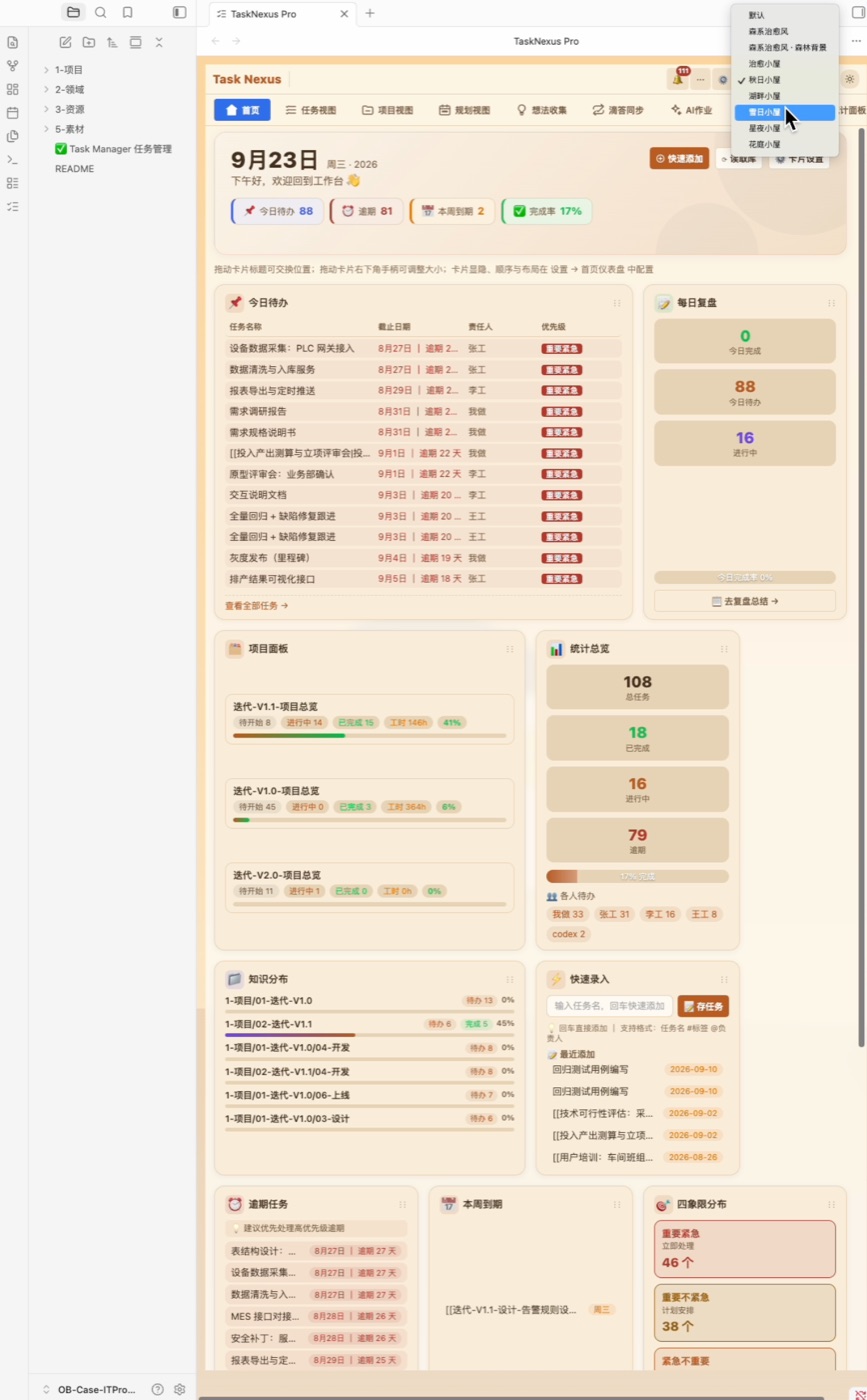
🏠 Home dashboard Pro
The home dashboard is the Pro edition's command centre. It pulls together today's tasks, project overview, the four-quadrant split and the task timer, so the moment you open Obsidian you have the full picture.
How to open it
Click 🏠 Home at the top of the left navigation bar. The first open shows the default card layout, and every card can be customised.
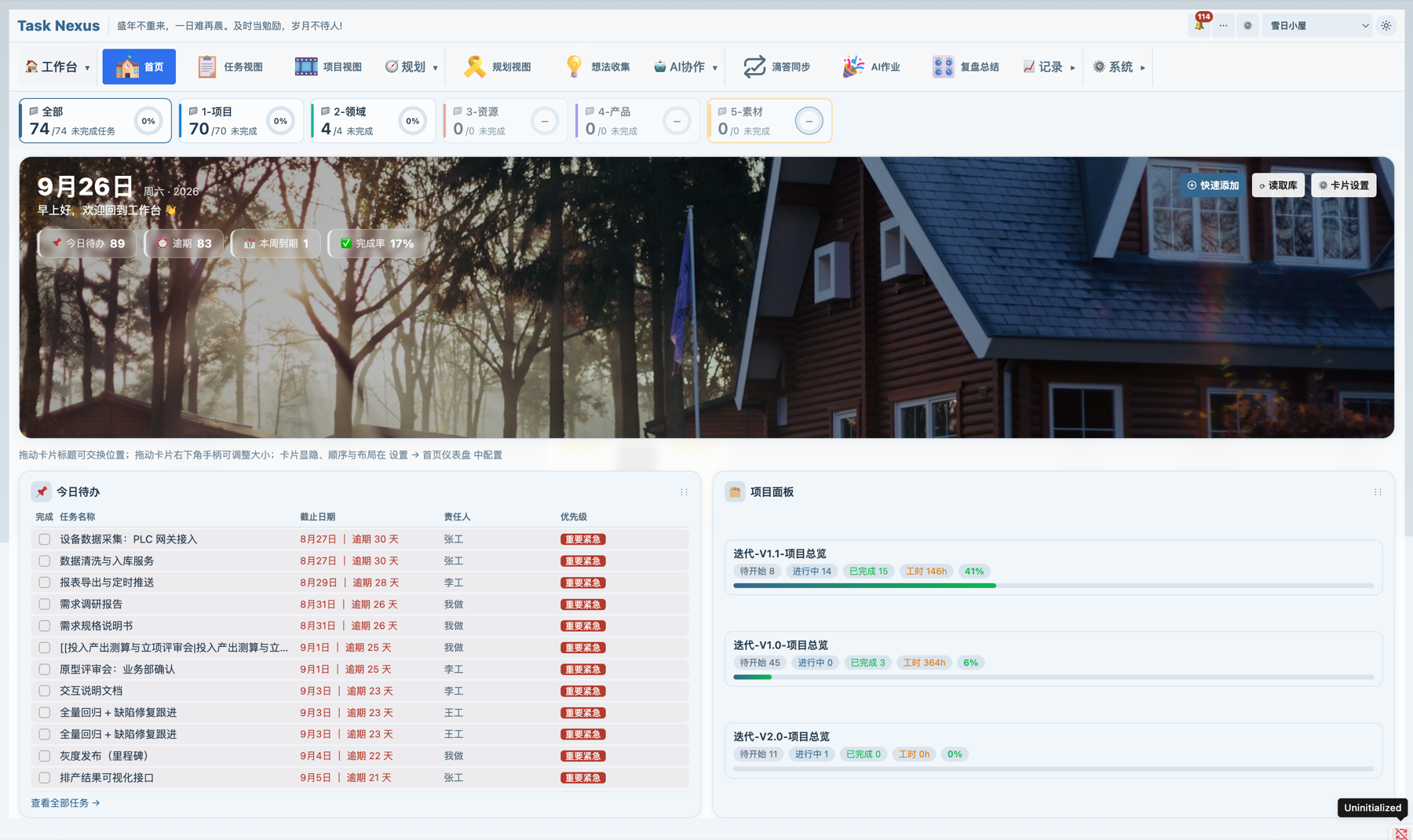
Key metrics
Four colourful cards at the top:
- 📌 Due today — tasks to finish today
- ⏰ Overdue — tasks past their due date, highlighted in red
- 📅 Due this week — tasks due within the week
- ✅ Completion rate — overall share of tasks completed
A quick add button in the top right creates a new task in one click.
Today's task list
The left column lists today's tasks, sorted by priority. Each row shows:
- Task name
- Due date (overdue tasks are red, with days overdue)
- Owner
- Priority (important & urgent, important & not urgent, and so on)
"View all tasks" at the bottom jumps to the full list.
Project panel
The right column has an overview card per project, each showing:
- Project name and status split (not started / in progress / done)
- Effort totals
- A completion progress bar
Widget cards
The dashboard also holds a set of widget cards you can drag into place:
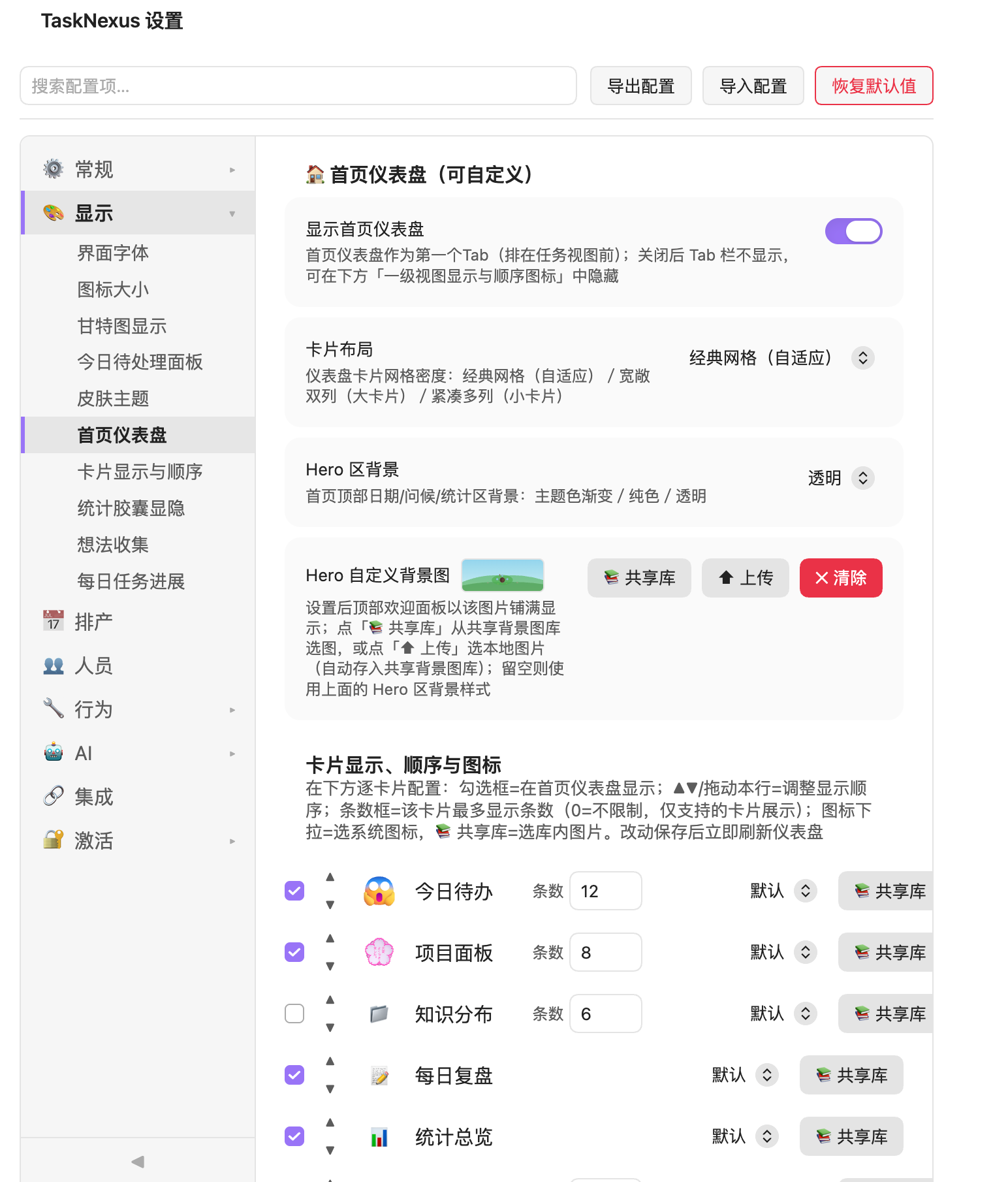
- 💡 Idea capture — jot sparks and one-off thoughts, then save them to the idea inbox
- 📖 Daily review — today's completed / to-do / in-progress numbers to guide a review
- ⚡ Quick entry — create tasks from a
task name #tag @ownerline - 📅 Due this week — this week's tasks sorted by due date
- ⚠️ Overdue tasks — sorted by days overdue, so urgent items come first
Analytics cards
- 🎯 Four quadrants — tasks split by the Eisenhower matrix into important & urgent, important & not urgent, urgent & not important and neither; click through to a board grouped by priority
- 📋 Recent changes — task activity from the last 7 days
- ⏱️ Task timer — the task being timed right now and finished timer records
- 📊 Project iteration split — completion rate and progress bars per project iteration
Custom layout
Drag a card by its title to reorder it. Card visibility and layout are configured under Settings → Home dashboard.
🎨 Skins Free
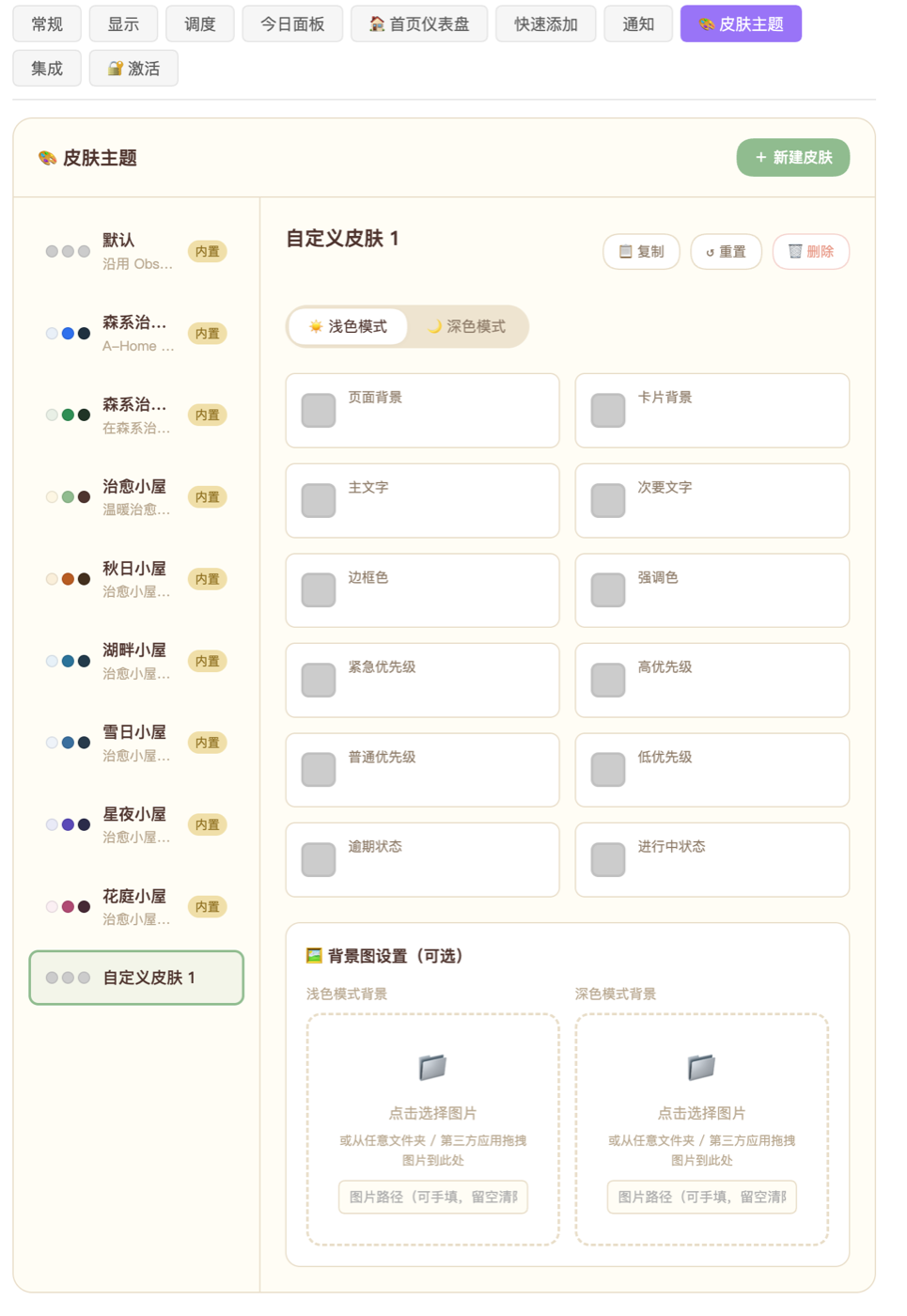
Switch between several skins in one click and make the plugin look the way you want. Every skin ships with a light and a dark palette that follows Obsidian's own theme.
At a glance
- Toolbar skin dropdown: several built-in skins, including a calming forest palette, one click to switch
- Light and dark palettes: every skin has both, following your Obsidian theme
- Custom skins: create your own and configure colours and background images freely
- Shared background library: the home screen, project panel and skins share one background library — upload once, use anywhere
- Light/dark toggle: the sun / moon button in the toolbar switches the global theme, see Global theme switch
🌙 Global theme switch Pro
Task Nexus switches between dark and light in one click, so it stays comfortable whatever the light around you. The switch changes all of Obsidian's appearance, not just the plugin.
How to switch
- Find the theme button in the top right of the Gantt toolbar
- In light mode it shows a ☀️ sun icon (click to go dark)
- In dark mode it shows a 🌙 moon icon (click to go light)
- Click and the theme changes immediately
What it does
| Mode | Effect | Best for |
|---|---|---|
| ☀️ Light | White background, dark text | Daytime and bright rooms |
| 🌙 Dark | Dark background, light text | Evenings and low light |
Theme sync
The switch syncs to Obsidian's global appearance settings (appearance.json) through Obsidian's internal API, which means:
- Your theme choice survives an Obsidian restart
- Other plugins and themes follow along
- Change the theme from Obsidian's settings and the toolbar icon updates to match
🧩 Custom icons Free
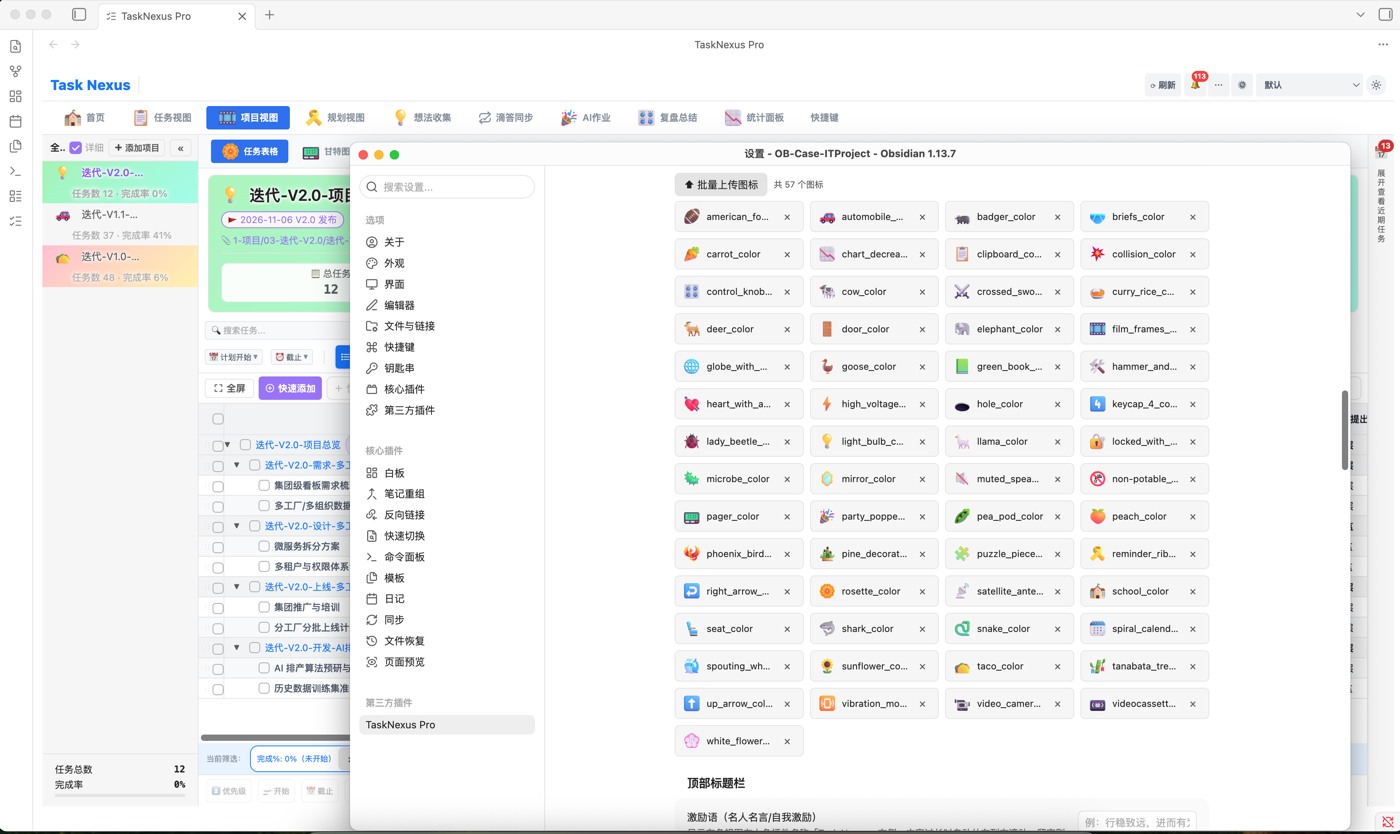
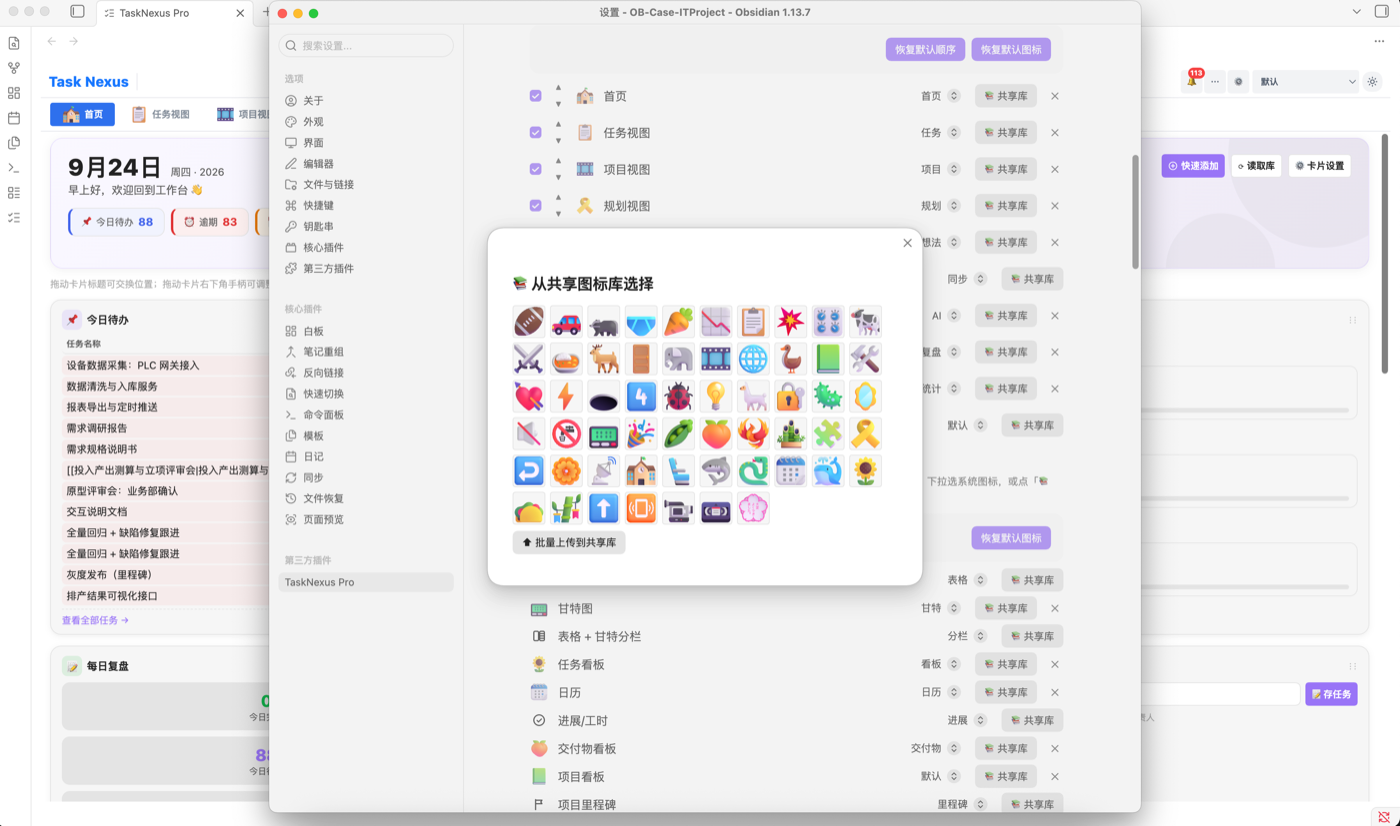
A shared icon library plus per-area icon sizes: you define the fine detail of the interface.
At a glance
- Shared icon library: primary tabs, secondary tabs, home panels and project icons all pick from one library
- Upload and reuse images: upload local images to the shared library and use them in several places
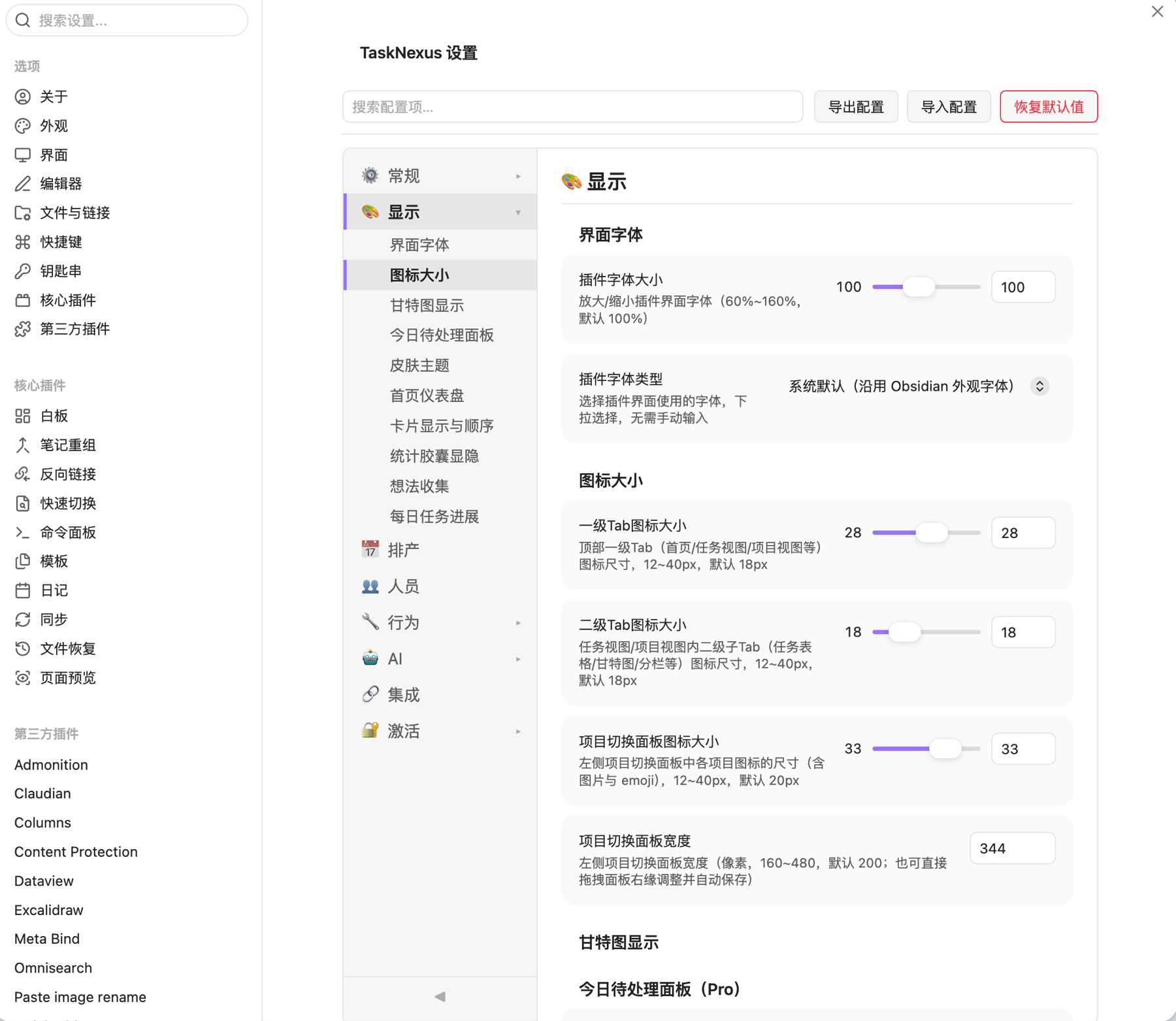
- Independent sizes: icon size is adjustable per area — primary tabs, secondary tabs, project panel and home cards (12–40px)
- Instantly applied: changes take effect right away, with no Obsidian restart
🖼️ Project icons & covers Pro
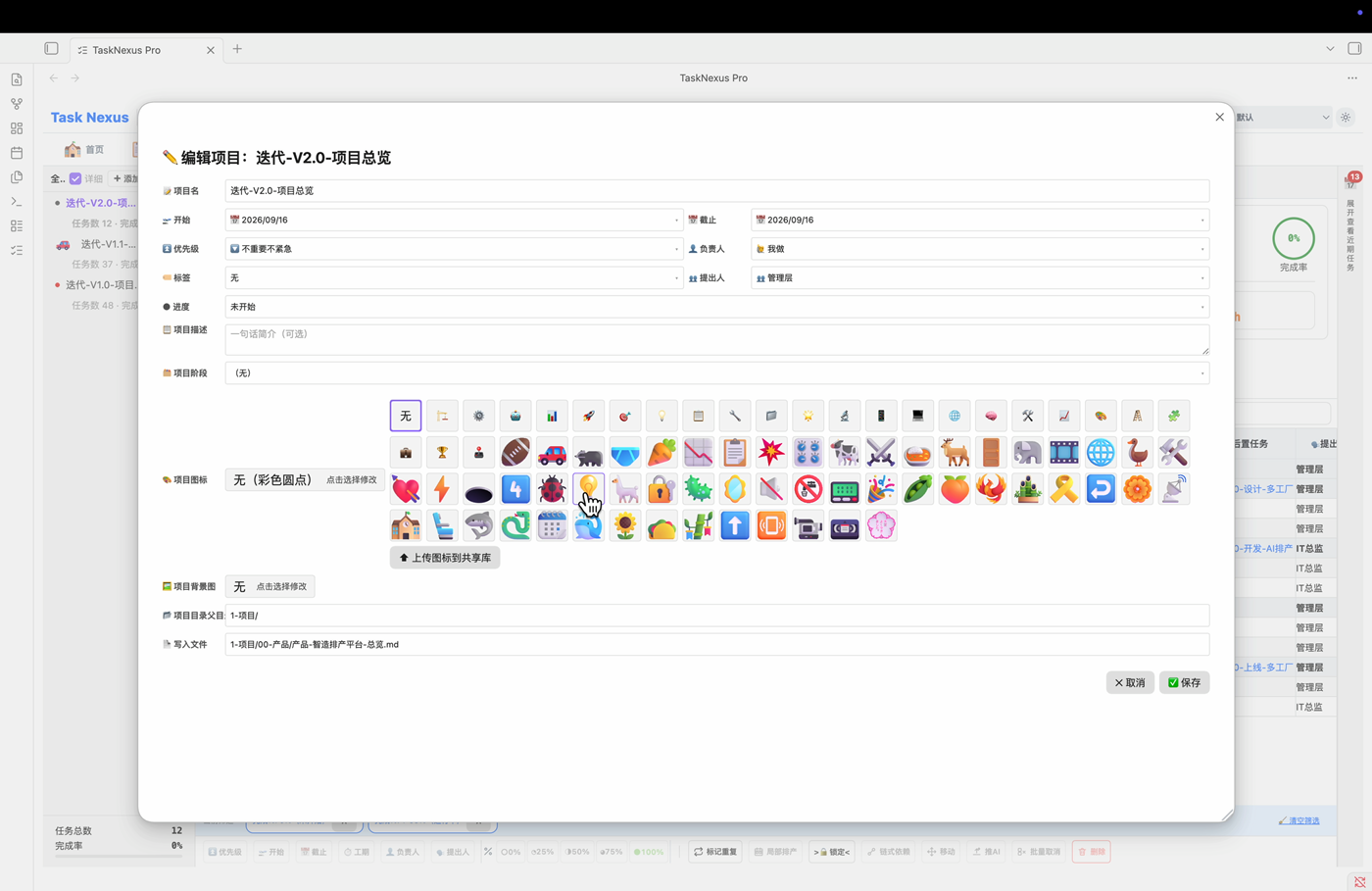
Every project gets its own look — when editing a project, pick a dedicated icon and set a cover image, and you will recognise it instantly in any list.
Where they appear
- Project cards in the project panel
- The header of project view
- The project badge on task rows
- The top of the stats dashboard
🗓️ Calendar board Free
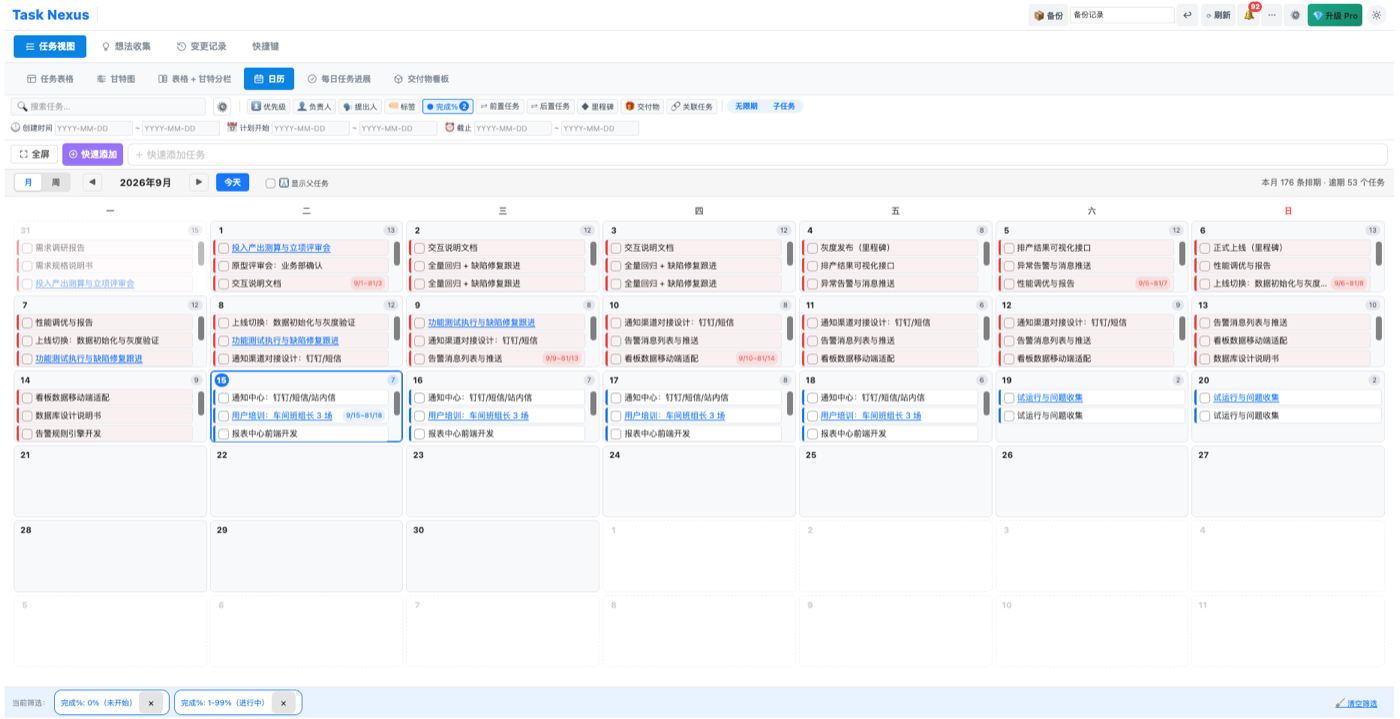
Tasks laid out on a calendar by date, so the schedule is obvious at a glance.
At a glance
- Two entry points: both task view and project view can switch to the calendar
- Automatic placement: tasks land on the right date from their planned start and due times
- Week / month switch: week view for this week, month view for the whole month
- Drag to reschedule: drag a task bar to move its dates while keeping the original duration
📅 Daily progress Free
Check in each day and log progress — and the progress moves itself forward.
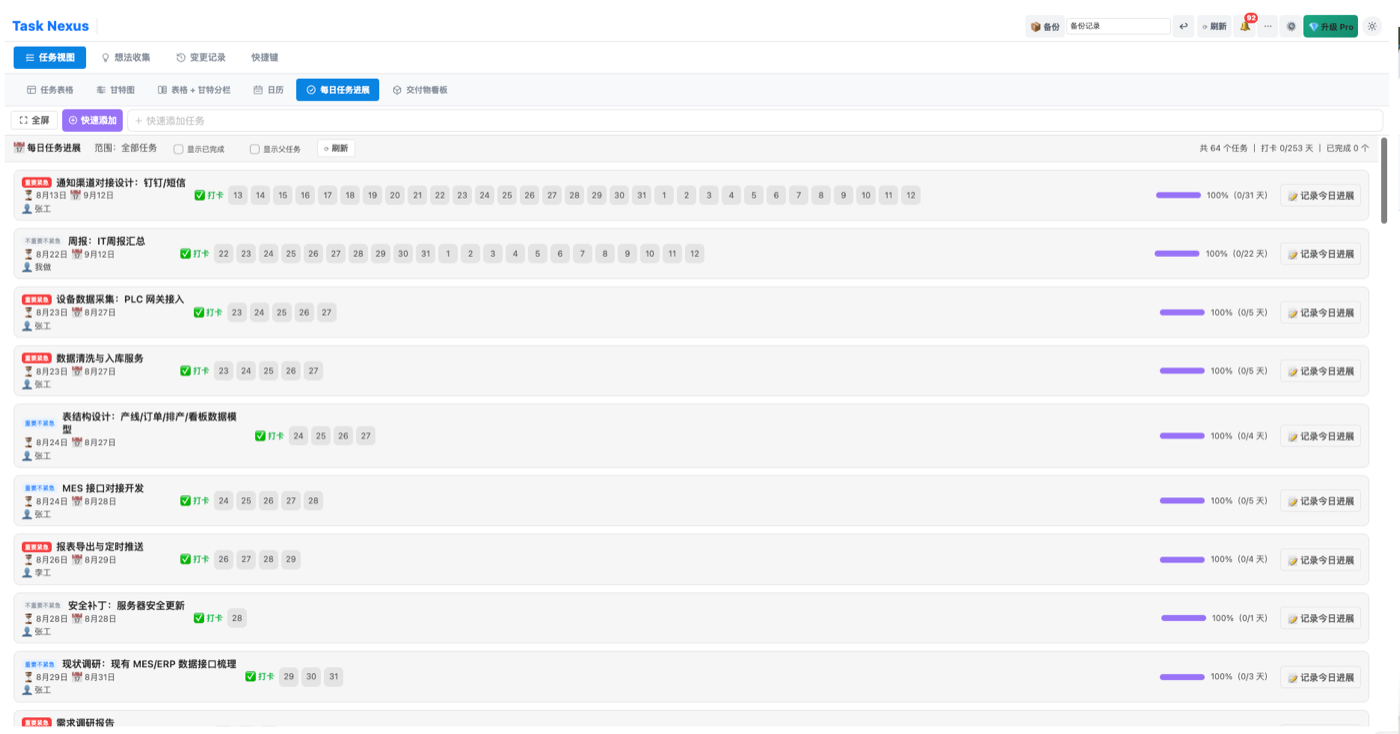
At a glance
- Check-in logging: log today's progress; progress advances automatically with the task duration, or drag it to fine-tune
- Everything on one screen: priority colours, start and end date icons and owner together, with an option to show parent tasks
- Effort entry: enter today's hours directly and click through to all effort records
- Linked to the timer: pairs with the task timer for automatic settlement of actual hours — see Task timer
⭐ Task rating Free
Score a task when it is done, and reviews have something to stand on.
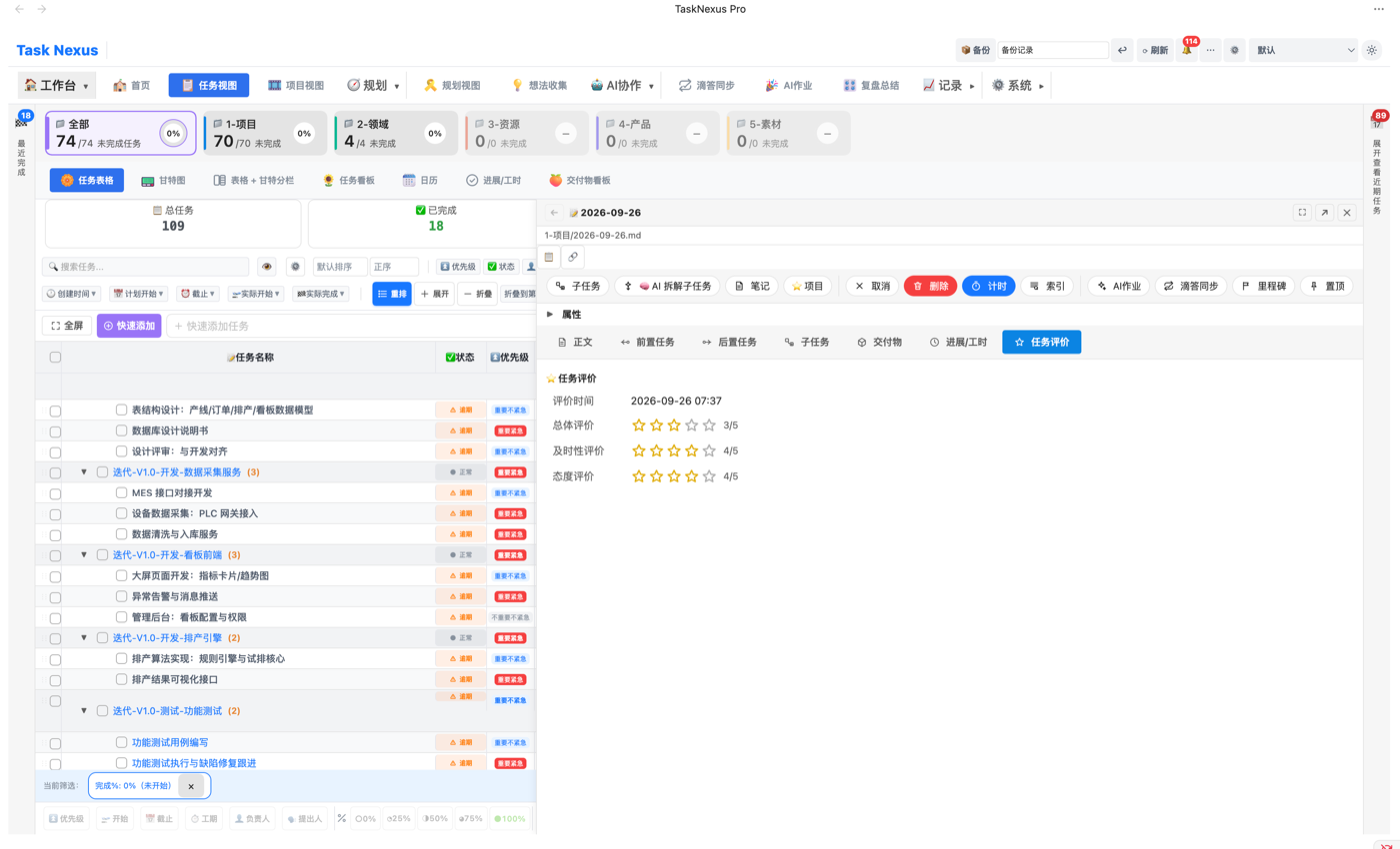
At a glance
- Task detail · Task rating tab: a rating section appears once a task is complete, for an overall score and a comment
- Star column: the "Overall rating" column in the task table shows stars directly
- Rate in the row: click in the table row to rate — saved instantly, no need to open the task detail
⚙️ New settings center Free
The settings page navigation was rebuilt, so no more digging around for a setting.
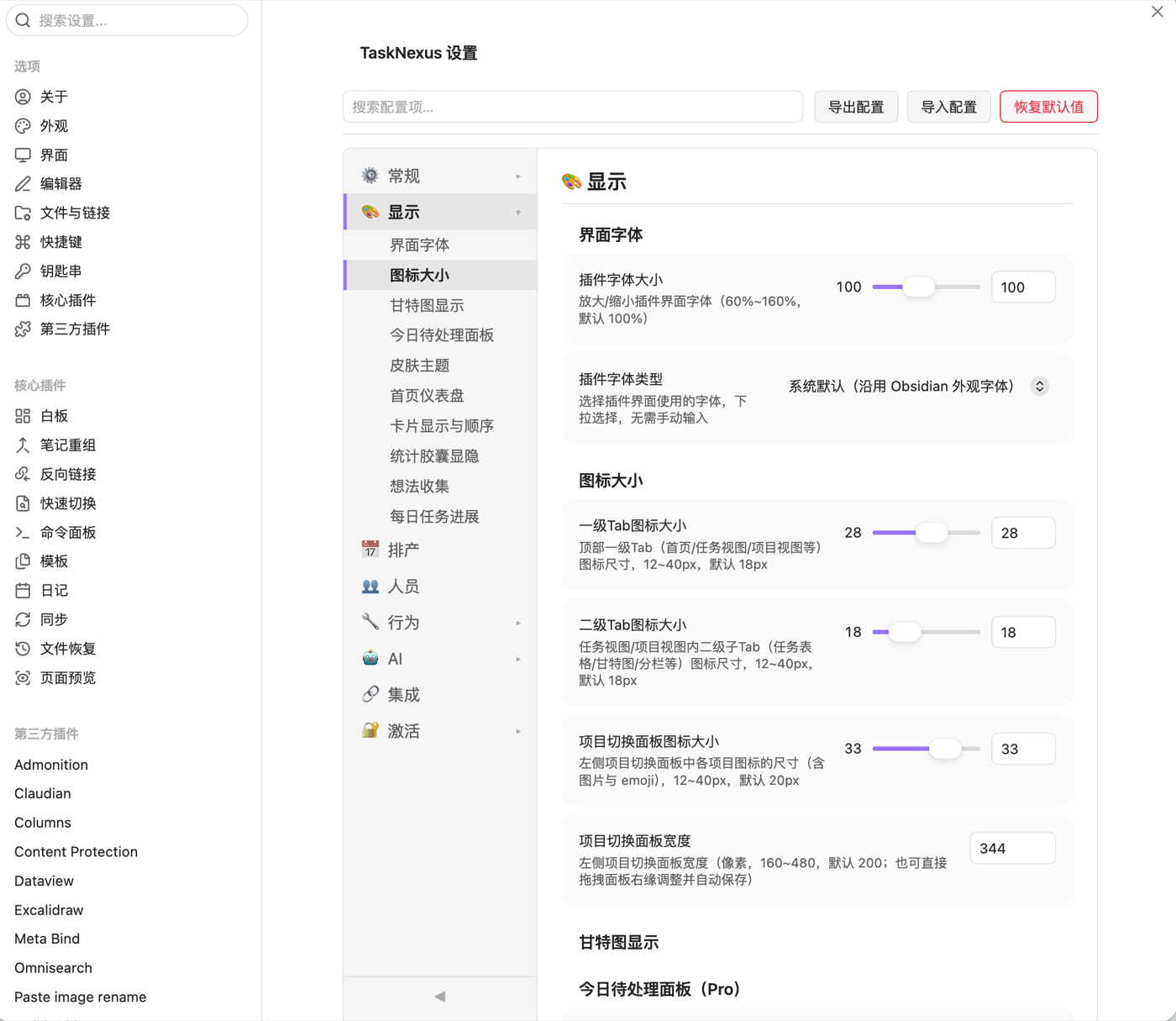
At a glance
- Five top-level tabs: Workspace / Planning / AI / Records / System — a clean, direct top-level navigation
- Rebuilt section navigation: section headings in the settings page are clickable, so long pages no longer mean endless scrolling
- Setting search: type a keyword to find a setting and jump straight to it
- One home for new settings: skins, icon sizes and other recent settings now live in the settings center
⚙️ Pro settings
Open "Settings → TaskNexus" to configure the plugin. Below are the settings added by Pro (for Free settings, see the Free documentation):
Project view settings
| Setting | Description | Default |
|---|---|---|
| Enable project view | Shows the project view entry in the sidebar | On |
| Project detection field | The frontmatter field used to detect projects | type: project |
| Auto-refresh project stats | Refreshes the numbers when you switch projects | On |
Today panel settings
| Setting | Description | Default |
|---|---|---|
| Enable Today panel | Shows the Today panel on the right of the Gantt chart | On |
| Default panel width | Initial width of the Today panel in pixels | 300px |
| Show overdue tasks | Include overdue tasks in the Today panel | On |
| Show in-progress tasks | Include tasks in progress in the Today panel | On |
| Default view mode | List mode / board mode | List mode |
Task board settings
| Setting | Description | Default |
|---|---|---|
| Enable task board | Shows the board toggle in the toolbar | On |
| Board column definitions | Custom column names and the status each maps to | To do / In progress / Done |
| Show summary on cards | Whether cards show a summary of the note body | On |
Stats dashboard settings
| Setting | Description | Default |
|---|---|---|
| Enable stats dashboard | Shows the stats button in the toolbar | On |
| Stats scope | Whole vault / current project only | Whole vault |
| Trend time range | How many weeks / months the trends cover | Last 12 weeks / 6 months |
Task timer settings
| Setting | Description | Default |
|---|---|---|
| Enable task timer | Shows the timer button on task rows | On |
| Maximum session length | Stops a session that runs too long, automatically | 4 hours |
| Settle on completion | Writes timer results to actualHours when the task is done | On |
| Open note when timing starts | Opens the linked note when you click the timer button | Off |
Board settings (shared by task board and project board)
| Setting | Description | Default |
|---|---|---|
| Show parent tasks on boards | Parents appear as 📂 rows, with start and end aggregated from their children | On |
| Show completed on boards | Whether the project board shows completed / cancelled tasks | Off |
Note editor and deliverables settings
| Setting | Description | Default |
|---|---|---|
| Deliverable file extensions | Extensions matched when searching in the Deliverables tab (comma separated) | md,ppt,pptx,doc,docx,xls,xlsx,pdf,png,jpg,jpeg |
Interface personalisation
| Setting | Description | Default |
|---|---|---|
| Motivational quote | Shown to the right of the plugin name "Task Nexus"; long text scrolls and empty means hidden | (empty) |
❓ FAQ
Q: Project view shows no projects?
Make sure the project's index note has type: project in its frontmatter — that is the field the plugin uses to detect projects.
Q: Dragging on the task board did not change the status?
Check that the note file is editable rather than read-only. After a drag, the status is written back to the Markdown task line in the note.
Q: The Today panel shows no tasks?
The Today panel only lists three kinds of task: due today, overdue and in progress. If none of your tasks match, the panel is empty. Create a task due today to test it.
Q: The stats dashboard numbers look wrong?
Stats are based on the folders configured under "Settings → Included paths". Tasks outside the scan scope are not counted, so check that the included paths are right.
Q: Timer results are not written to actualHours?
Check that "Settings → Task timer → Settle on completion" is on. Settlement only happens when a task is completed after the timer is stopped.
Q: The project switcher shows no projects?
Make sure the project's index note has type: project in its frontmatter. You can also click "🔄 Refresh" at the top of the panel to re-read the vault and update the list.
Q: What is the difference between the project board and the task board?
The task board shows every task in the vault; the project board shows only the tasks of the selected project. They share their board settings (show parent tasks, show completed and so on).
Q: I marked a milestone but cannot see it on the Gantt chart?
Milestones render as diamonds. If one is missing, check whether (1) the milestone column is hidden from the header right-click menu, and (2) the task has start / due dates — a milestone needs dates to appear on the timeline.
Q: Switching theme changed nothing?
The theme switch works through Obsidian's internal API. If the icon inside the plugin does not update at once, refresh the Gantt panel. The setting is persisted to Obsidian's appearance.json, so it survives a restart.
Q: Deliverable search cannot find the file I want?
Deliverable search only matches the file extensions configured in settings (md / ppt / docx / xlsx / pdf / images by default). If your extension is missing, add it under "Settings → Note editor → Deliverable file extensions".
Q: How do I upgrade to Pro?
Pro adds project view, task boards, the Today panel, the stats dashboard, the task timer and more. See the plan comparison on the home page, or email us for purchase and licence details.